---
title: "Using Storybook with VueJS"
description: "Learn how to build a component library with Vue and Storybook to create modular and reusable components."
authors:
- name: "Dan Arias"
url: "https://auth0.com/blog/authors/dan-arias/"
date: "Oct 23, 2018"
category: "Developers,Tutorial,Vue"
tags: ["vue", "storybook", "frontend", "component", "ui", "ux", "engineering", "component-library", "reusability", "kanban"]
url: "https://auth0.com/blog/using-storybook-with-vuejs/"
---
# Using Storybook with VueJS
Storybook lets us interactively develop and test user interface components without having to run an application. Because Storybook acts as a component library with its own Webpack configuration, we can develop in isolation without worrying about project dependencies and requirements.
In this post, you are going to learn how to integrate Storybook with an existing Vue.js project by using the popular [Kanban Board Progressive Web App (PWA), available on GitHub,](https://github.com/elkdanger/kanban-board-pwa) created by my teammate Steve Hobbs. This process can be followed for a new Vue project as well.
## Running the Kanban Board Project
Execute these commands to get the Kanban Board project up and running locally:
```bash
git clone git@github.com:elkdanger/kanban-board-pwa.git
cd kanban-board-pwa/
npm install
npm run dev
```
To see the application running, open [`http://localhost:8080`](http://localhost:8080) in your browser:
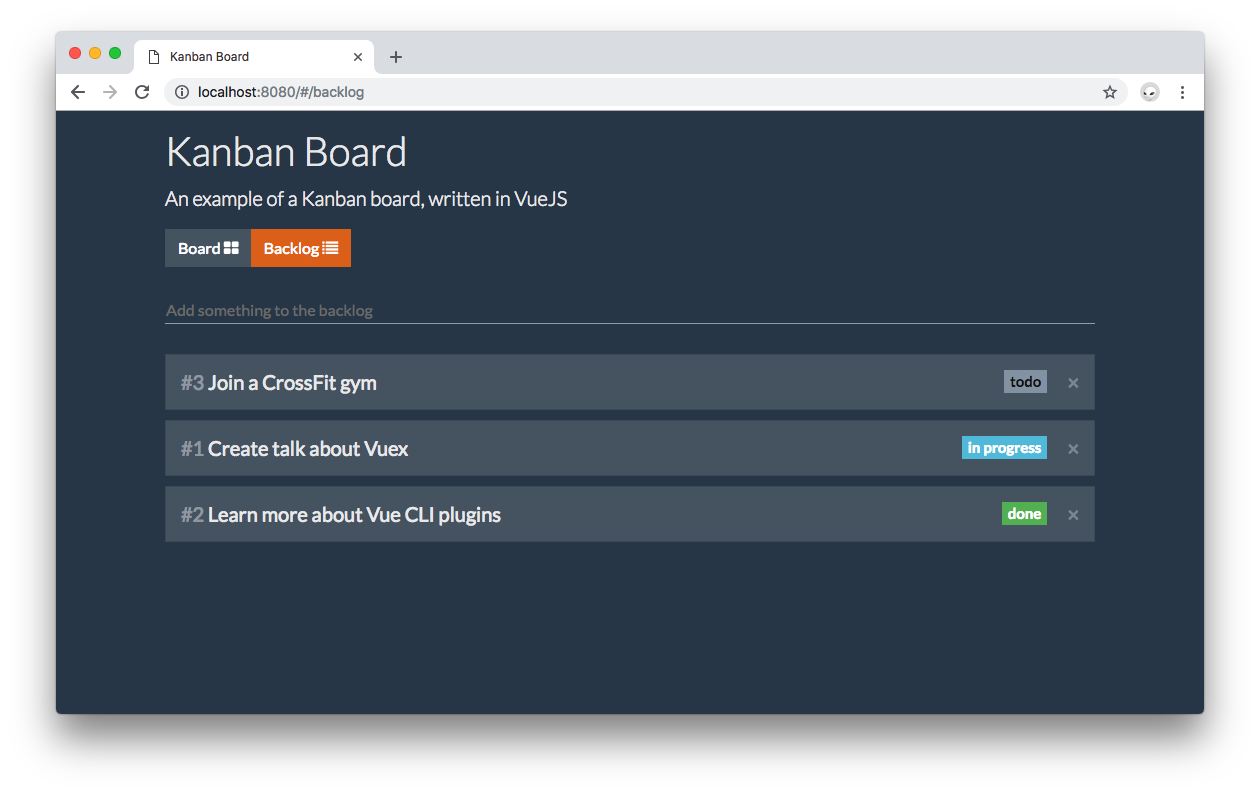
> You don't have to run the app to use Storybook. If you prefer, you can stop it and close the browser tab.
Finally, open the `kanban-board-pwa` project in your preferred IDE or code editor.
## Setting Up Storybook with Vue
With `kanban-board-pwa` as your current working directory, run the following command to install Storybook using `npm`:
```bash
npm i --save-dev @storybook/vue
```
Storybook also requires that you have `vue` and `babel-core` installed. Since the `kanban-board-pwa` was created using the Vue CLI, these two dependencies are already installed.
Finally, create an `npm` script that lets you start and run Storybook easily. Under the `scripts` section of your `package.json` file, add the following:
```json
{
// ...
"scripts": {
// ...
"storybook": "start-storybook -p 9001 -c .storybook"
}
// ...
}
```
The `-p` command argument specifies the port where Storybook is going to run locally: in this case `9001`. The `-c` command argument tells Storybook to look for a `.storybook` directory for configuration settings. You'll do that next.
## Configuring Storybook with Vue
Storybook can be configured in many different ways. As a best practice, its configuration should be stored in a directory called `.storybook`. Create that directory under your root folder:
```bash
.
├── .babelrc
├── .dockerignore
├── .editorconfig
├── .eslintignore
├── .eslintrc.js
├── .git
├── .gitignore
├── .idea
├── .postcssrc.js
├── .storybook // Storybook config directory
├── Dockerfile
├── LICENSE
├── README.md
├── build
├── config
├── index.html
├── node_modules
├── package-lock.json
├── package.json
├── screenshots
├── src
└── static
```
Within `.storybook`, create a `config.js` file to hold all the configuration settings. Here, you have to define critical elements that would make Storybook aware of your Vue application.
### Defining Vue
Similar to the `src/main.js` file, you we need to import `vue`. Update `config.js` as follows:
```javascript
// .storybook/config.js
import Vue from 'vue';
```
### Defining Vue Components
Just like it's done for Vue projects, you need to import and globally register with `Vue.component` any of your global custom components. Update the `config.js` to import and register the `TaskLaneItem` component:
```javascript
// .storybook/config.js
import Vue from 'vue';
// Import your custom components.
import TaskLaneItem from '../src/components/TaskLaneItem';
// Register custom components.
Vue.component('item', TaskLaneItem);
```
This has to be done because Storybook runs in isolation from the Vue application. Take note that components registered locally are brought in automatically. These are components that are registered using the `components` property of a Vue component object. For example:
```javascript
new Vue({
el: '#app',
components: {
'component-a': ComponentA,
'component-b': ComponentB
}
});
```
`ComponentA` and `ComponentB` are registered locally under `#app`.
`TaskLaneItem` is a global custom component so you have to import it and register it with Vue in order to instantiate it independently within Storybook.
### Configuring and Loading Stories
You need to import the `configure` method from `@storybook/vue` to run Storybook and implement it to load **stories** (you'll learn what stories are soon):
```javascript
// .storybook/config.js
import { configure } from '@storybook/vue';
import Vue from 'vue';
// Import your custom components.
import TaskLaneItem from '../src/components/TaskLaneItem';
// Register custom components.
Vue.component('item', TaskLaneItem);
function loadStories() {
// You can require as many stories as you need.
}
configure(loadStories, module);
```
Storybook works in a similar way to testing tools. The `config.js` file executes the `configure` method, which takes as argument a function called `loadStories` and a `module`. `loadStories` will have **stories** defined on its body.
A **story** describes a component in a specified state. You'd want to write a story for each state a component can have, such as `active`, `inactive`, `loading`, etc. Storybook will then let you preview the component in its specified state in an interactive component library. You'll soon be setting that up.
For better project management, it's ideal to store the stories next to the components. Within `src`, create a `stories.js` file to host all the stories you'll use. Then, you can use the `stories.js` file to quickly load the stories in the `config.js` file like so:
```javascript
// .storybook/config.js
// ...
function loadStories() {
// You can require as many stories as you need.
require('../src/stories');
}
configure(loadStories, module);
```
When `loadStories` is run, Storybook will import all the stories present in `src/stories.js` and execute them. This makes the maintenance of the `config.js` file much easier by keeping it highly focused on the configuration of Storybook rather than its implementation. All the action, for now, happens within the `src/stories.js` file.
> All custom components and Vue plugins should be registered before calling `configure()`.
## Writing Storybook Stories for Vue
It's time to start writing Storybook stories and bring the component library to life. Head to `src/stories.js` and start it like so:
```javascript
// src/stories.js
import { storiesOf } from '@storybook/vue';
storiesOf('TaskLaneItem', module);
```
So far, the `storiesOf` method is imported. This method will help you create stories for a component, in this case, you are using the `TaskLaneItem` component to fulfill that role. You don't need to import it into `src/stories.js` because `TaskLaneItem` has already been registered globally with `Vue.component`. Using, Storybook's declarative language, you tell it that you want stories of `TaskLaneItem`:
```javascript
storiesOf('TaskLaneItem', module);
```
If you think about this process in terms of an actual book, this is the book's binding and cover. Now, you need to fill it with pages full of stories. You can do that declaratively too using the `add` method:
```javascript
// src/stories.js
import { storiesOf } from '@storybook/vue';
storiesOf('TaskLaneItem', module).add('Default TaskLaneItem', () => ({
template: ''
}));
```
`add` acts like adding a chapter in a book that has a story. You'd want to give each chapter a title. In this case, you are creating a story titled `Default TaskLaneItem`. `add` takes as argument the story title and a function that renders the component being staged. In this case, the component is just a Vue component definition object with the `template` option specified.
**Very important note:** The tag name used in the template to represent the component is the name you used when you registered the component in `.storybook/config.js` with `Vue.component`:
```javascript
// Register custom components.
Vue.component('item', TaskLaneItem);
```
This Vue component definition object can be refactored to make it more modular by making `id` and `text` discreet `props`:
```javascript
// src/stories.js
import { storiesOf } from '@storybook/vue';
storiesOf('TaskLaneItem', module).add('Default TaskLaneItem', () => ({
data() {
return {
item: { id: 10, text: 'This is a test' }
};
},
template: ''
}));
```
You now have the foundation of writing a story. It's time to see if everything is working by running Storybook.
## Running Storybook
In your terminal, run the following command:
```bash
npm run storybook
```
If everything runs successfully, we will see this message in the console:
```shell
info Storybook started on => http://localhost:9001/
```
Open that URL, [`http://localhost:9001/`](http://localhost:9001/) in the browser. Let it load and you'll see your own Storybook in full glory:

Right now, the `TaskLaneItem` component doesn't look too good and the text is hard to read in comparison to how it looks on the live application:

Open the `src/components/TaskLaneItem.vue` file that holds the definition of the `TaskLaneItem` component. Notice that it doesn't have much styling other than a background color being defined. The complete styling for this component is coming from Bootstrap. Thus, the next step is for you to allow Storybook to use Bootstrap.
## Adding Custom Head Tags to Storybook
Open `index.html` and notice that the `kanban-board-pwa` app uses different tags within the `` element. The two relevant tags for previewing components correctly in Storybook are the `` tags that introduce Bootstrap and FontAwesome into the project.
Since Storybook runs in isolation from the app, it is not able to see or use these tags defined within `index.html`. As a solution, you can create a `preview-head.html` file under the `.storybook` configuration directory and add the needed `` tags like so:
```javascript
```
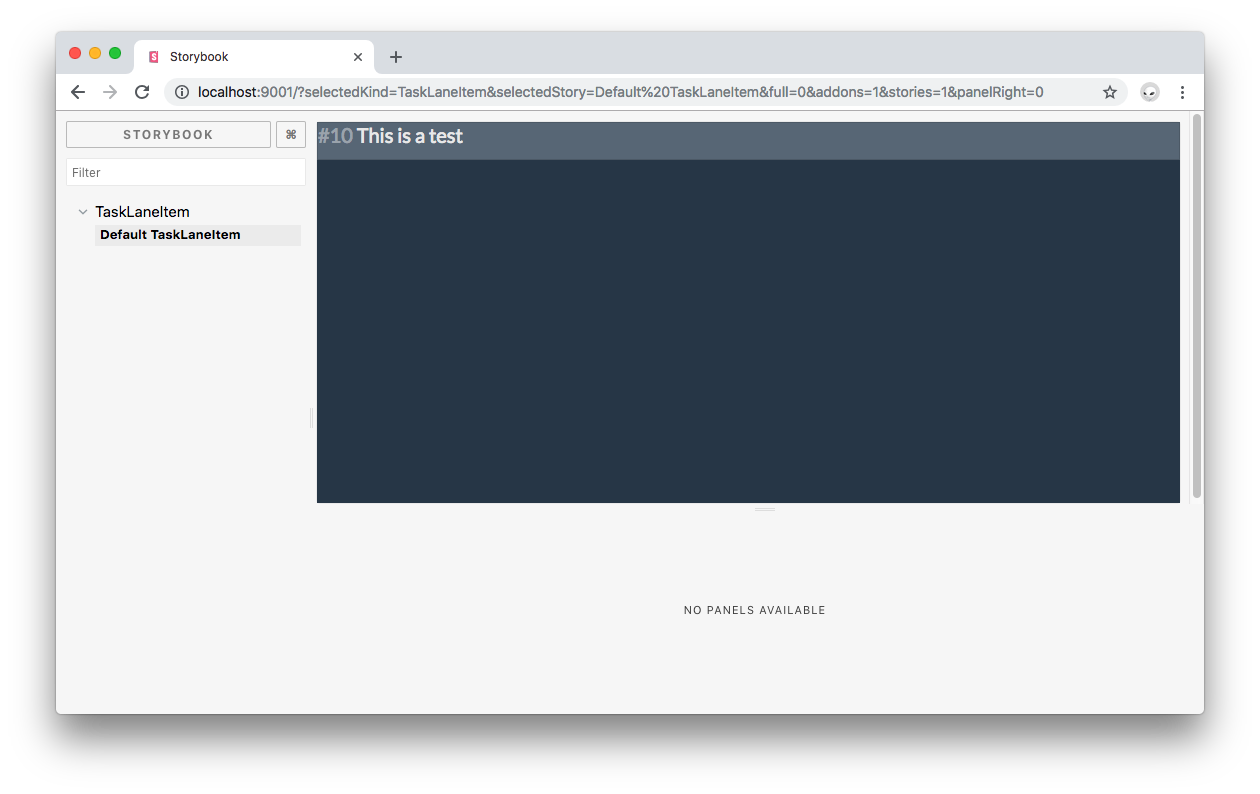
Restart Storybook by stopping it and then executing `npm run storybook` again. This lets Storybook use your updated configuration. Open [`http://localhost:9001/`](http://localhost:9001/) in the browser again and now you should see a much better-looking preview of `TaskLaneItem` that includes the same styling present in the full app:
## Previewing Component Changes in Storybook
So far, you've staged a component with its existing definitions and configuration. The most powerful feature of Storybook is being able to see changes live without having to run the application. Let's say that you want to make the color of the text within `TaskLaneItem` orange, increase its padding, and add an orange border. Will this look good? Find out by making these changes within the `
```
Save the file and you'll see Storybook update the preview of the component right away!
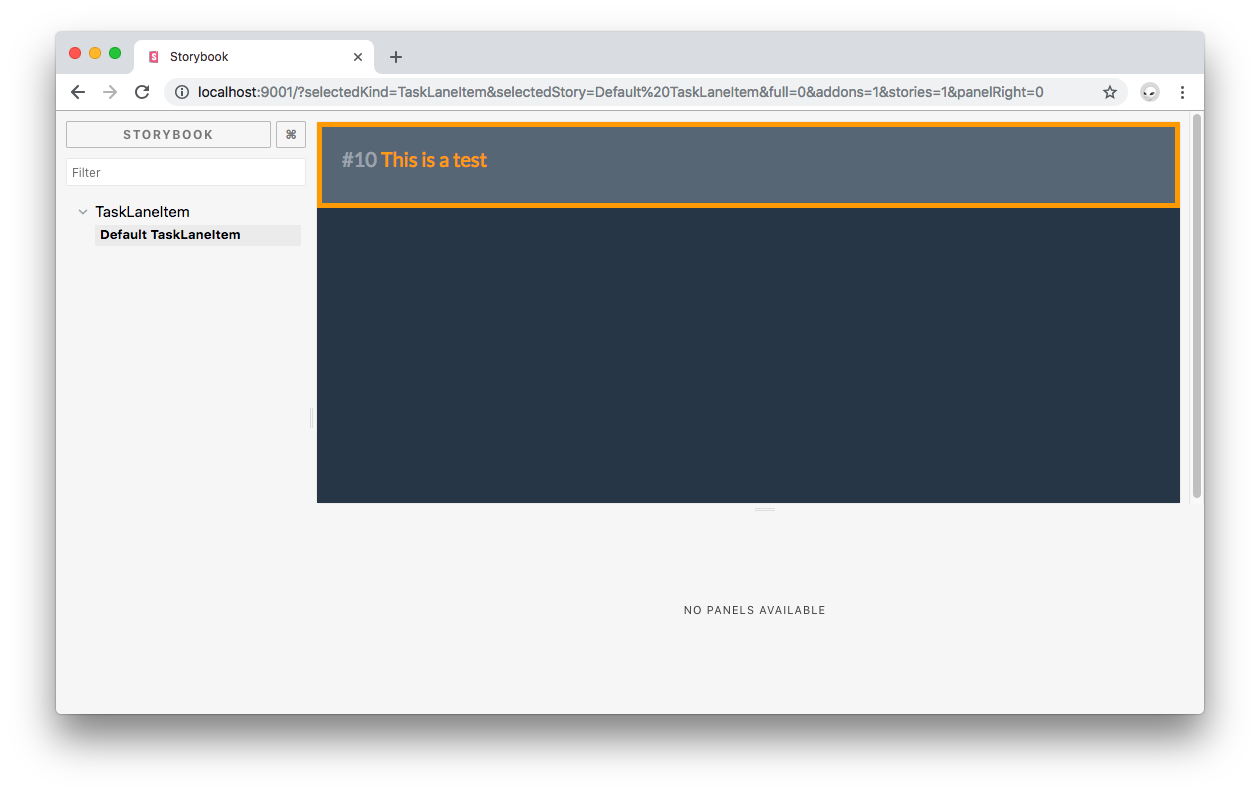
Think about the time you can save by experimenting with a component's look and feel in isolation. Instead of assembling the whole UI puzzle, you can just preview how one piece looks. However, Storybook does let you run components in composition.
Before moving on, reverse the style changes made to `TaskLaneItem`, it already looks pretty good.
## Using Vuex with Storybook
You have learned how to preview a simple presentational component. Now, you are going to create a story for the `TaskLane` component which has a more complex structure and uses a Vuex store to hydrate itself with data. First update `.storybook/config.js` to import and register `TaskLane`:
```javascript
// .storybook/config.js
// ...
// Import your custom components.
import TaskLaneItem from '../src/components/TaskLaneItem';
import TaskLane from '../src/components/TaskLane';
// ...
// Register custom components.
Vue.component('item', TaskLaneItem);
Vue.component('lane', TaskLane);
// ...
```
Next, head back to `src/stories.js` and create a story of `TaskLane`:
```javascript
// src/stories.js
// ... TaskLaneItem stories
storiesOf('TaskLane', module).add('Default TaskLane', () => ({
data() {
return {
doneItems: [
{ id: 10, text: 'This is a test' },
{ id: 12, text: 'This is another test' },
{ id: 14, text: 'This is yet another a test' },
{ id: 16, text: 'This is one more test' }
]
};
},
template: `
`
}));
```
This is similar to what you did before for `TaskLaneItem`, the main difference is that you are wrapping `lane` within a `div` with the `col-md` class and you are passing an array of `doneItems` to `TaskLane` through the `items` prop.
> Recall that you are using `lane` as the component tag name within the template because that is the name that you used to register the component with `Vue.component`.
Since `TaskLane` registers `TaskLaneItem` locally as seen in the `src/components/TaskLane.vue` file, Storybook automatically brings `TaskLaneItem` into the scope of `TaskLane` for this story. There's no need to create a `components` property within the component definition object of the `Default TaskLane` story.
Save the file. The changes may not show correctly in Storybook until you refresh the page, so go ahead and do so. Click on the `TaskLane` menu item to expand it and then click on `Default TaskLane`, you should now see a preview of the `TaskLane` component:
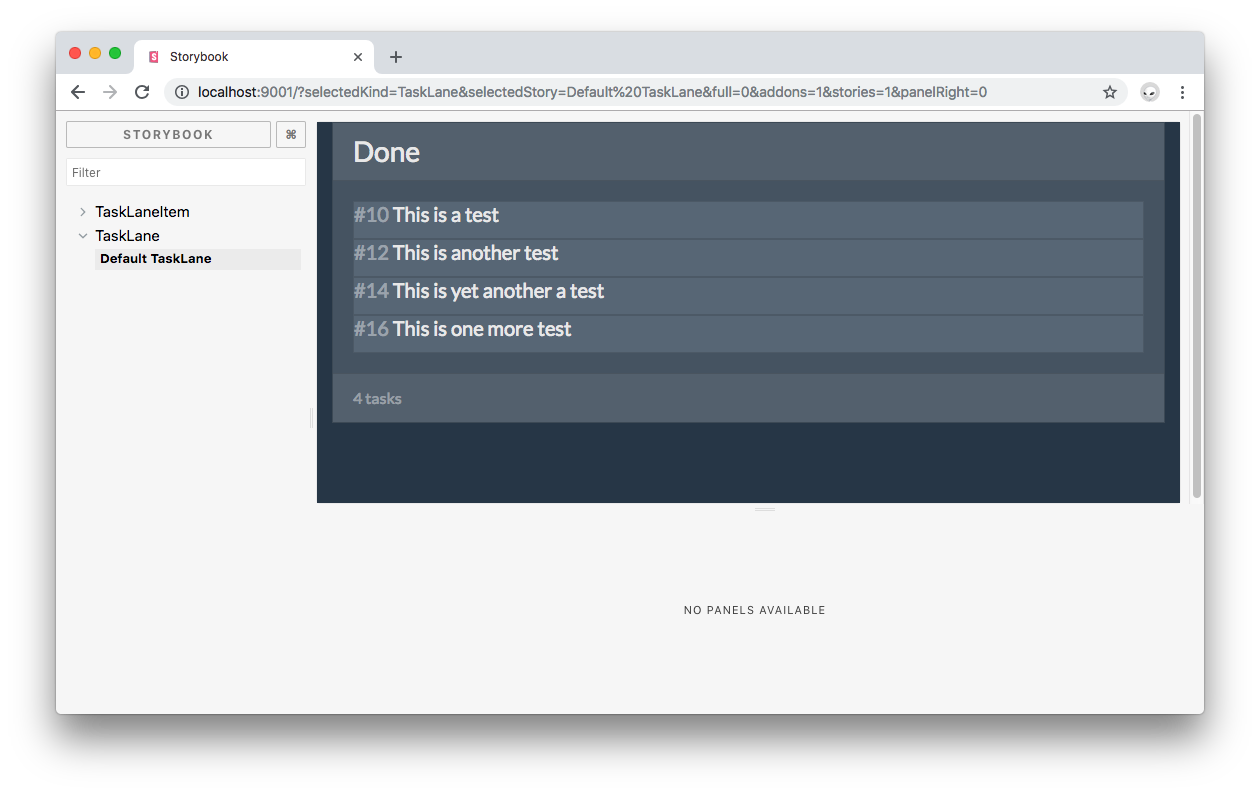
`TaskLane` uses `TaskLaneItem` to list tasks in the Kanban Board. These `TaskLaneItem` components can be dragged and dropped between `TaskLane` components as configured for this app. Notice how the Storybook `TaskLane` preview is completely interactive. You can drag and move around any of the visible items within the lane.
However, as you drag components within the lane, their position is not persistent. If you open the developer console, you will also see a lot of errors such as the following:
```bash
vue.esm.js:591 [Vue warn]: Property or method "$store" is not defined on the instance but referenced during render.
```
What's happening? Head to the definition of `TaskLane` present in the `src/components/TaskLane.vue` file. Notice that this component uses the `vuex` store created for this project to update items:
``` html
// src/components/TaskLane.vue
// ... Template tag
// ... Style tag
```
The instance of the `vuex` store is present through `$store`. It is used to commit an `updateItems` mutation that updates the lane to which a task lane item belongs. However, the instance of `TaskLane` within the story is unaware of the existence of this store. More importantly, you are manually passing an array of items to `TaskLane` for it to render. Why is this a problem?
The `kanban-board-pwa` application architecture uses a Vuex store as the single source of truth for the state of the application. Any component that needs to render data has to get it from the store. Vuex stores are reactive; thus, when there are changes in the structure of the store, the components that are subscribed to the affected data get updated.
The problem is that within the Storybook sandbox, the store has not been initialized with any data. Also, `TaskLane` gets its `items` data from its parent component, `KanbanBoard`. As seen in the `KanbanBoard` component definition in `src/components/KanbanBoard.vue`. This parent component queries the store to create computed properties that it passes down to `TaskLane` components:
``` html
// src/components/KanbanBoard.vue
```
You'd want to instantiate `Tasklane` in isolation — that's the purpose of using Storybook. Instantiating the whole `KanbanBoard` to be able to pass items props from the store to `Tasklane` is not a solution either because the store would still be empty. The first step to solve this problem is to add items to the store when the Storybook project is created.
Head to `.storybook/config.js` and update the file as follows:
```javascript
// ... Other imports
import store from '../src/store';
// .. Import your custom components.
store.commit('addItem', { text: 'This is a test' });
store.commit('addItem', { text: 'This is another test' });
store.commit('addItem', { text: 'This is one more test' });
store.commit('addItem', { text: 'This is one more test' });
// ... Register custom components.
// ...
```
Now, when the Storybook project is built, the store will be populated with those four items. However, if you make changes to the Storybook project files since the items are being stored in Local Storage in the browser, you will see duplicate items. This is solved by reloading the browser window where Storybook is hosted.
The `id` for each item is created by the store automatically. Next, update the `Default TaskLane` story within `src/stories.js` to pass store items as props to the `TaskLane` component:
```javascript
// src/stories.js
import { mapState } from 'vuex';
import { storiesOf } from '@storybook/vue';
import store from '../src/store';
// ... TaskLaneItem stories
storiesOf('TaskLane', module).add('Default TaskLane', () => ({
computed: mapState({
items: s => [...s.items.todo, ...s.items.inProgress, ...s.items.done]
}),
store,
template: `
`
}));
```
Similar to the logic present in `src/components/KanbanBoard.vue`, you use [`mapState`](https://vuex.vuejs.org/guide/state.html#the-mapstate-helper) to generate computed getter functions for you from the store.
It's important to understand how the `kanban-board-pwa` app works when adding items: If you look back at the `KanbanBoard` template, you'll see that each lane is given an `id` value:
```html
// src/components/KanbanBoard.vue
```
That `id` matches up (intentionally) with the array symbol in the store so that it becomes trivial to update the list dynamically without too much data overhead — a fine solution for the scope of this demonstration.
Save your work and refresh Storybook. You should see the following:
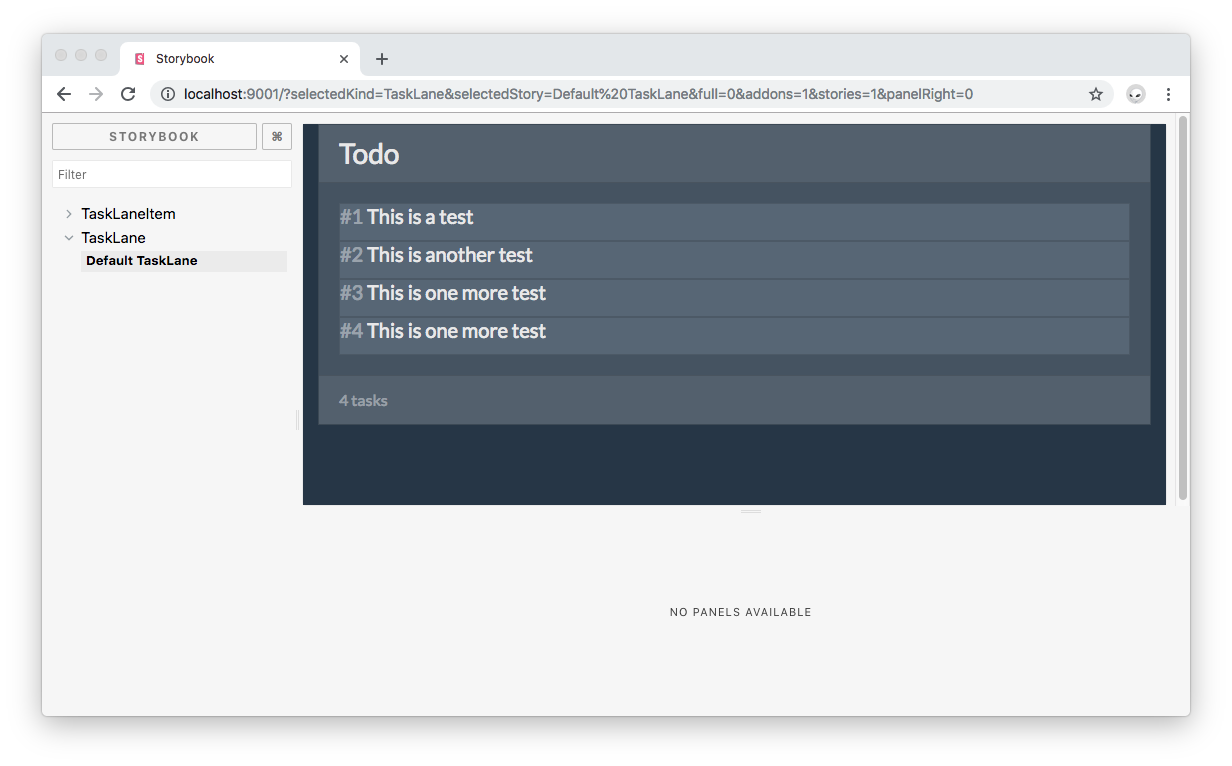
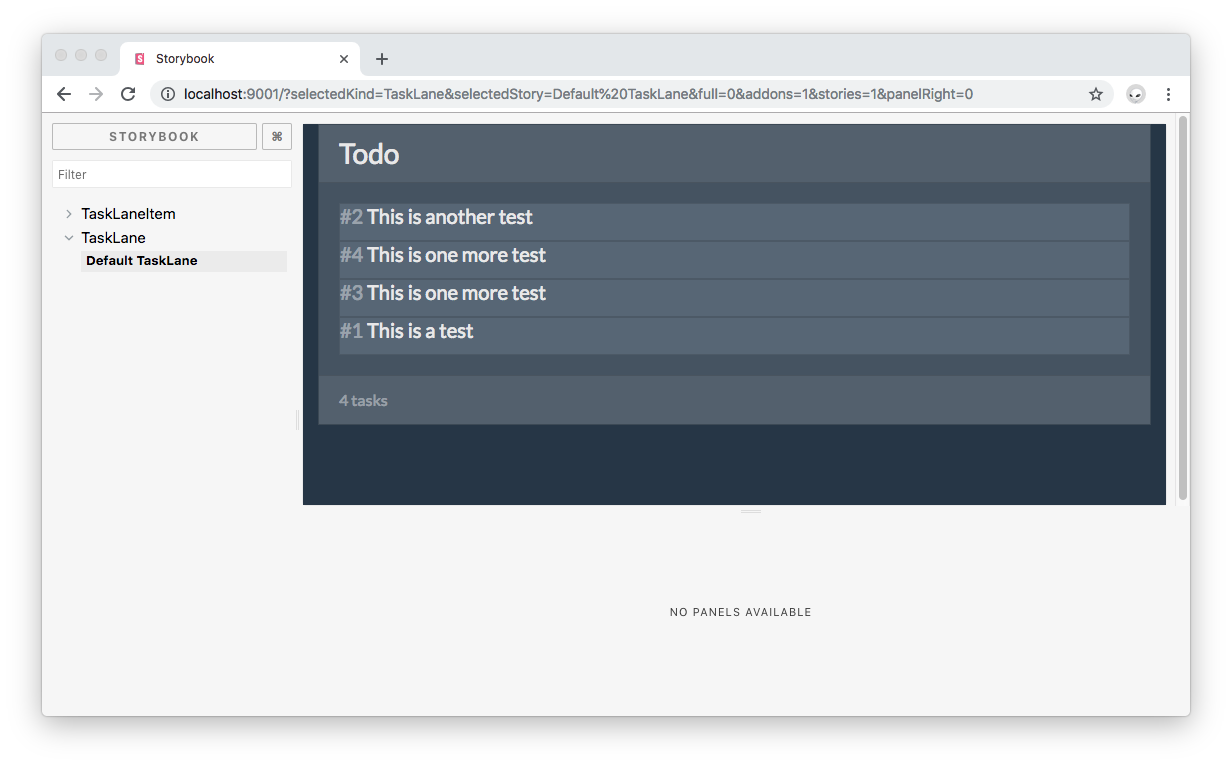
Rearrange items within the lane and observe how they remember their new position:
You didn't have to use `vuex` directly. But, in the case that you'd have wanted to create stores from scratch within a story, you'd have to import `vuex` and install it like so:
```javascript
// .storybook/config.js
import Vuex from 'vuex'; // Vue plugins
// Install Vue plugins.
Vue.use(Vuex);
```
You would then instantiate a new store within the story like this:
```javascript
import Vuex from 'vuex';
storiesOf('Component', module)
.add('Default Component', () => ({
store: new Vuex.Store({...}),
template: `...`
}));
```
Any required Vue plugins, such as `vuex`, need to be installed using with [Vue.use](https://vuejs.org/v2/api/#Vue-use).
## Assembling Complex Components in Storybook
It was cool seeing how to drag and drop items within a lane to rearrange them, but what would be even cooler would be to drag and drop items between lanes. You'll now create a story that presents the three lanes that exist in the full app: Todo, In Progress, and Done. This will be done without having to instantiate the `KanbanBoard component`. Head to `src/stories.js` and create the `Three TaskLanes` story:
```javascript
// src/stories.js
// ... imports
// ... TaskLaneItem stories
storiesOf('TaskLane', module)
.add('Default TaskLane', () => ({
computed: mapState({
items: s => [...s.items.todo, ...s.items.inProgress, ...s.items.done]
}),
store,
template: `
`
}))
.add('Three TaskLanes', () => ({
computed: mapState({
todoItems: s => s.items.todo,
inProgressItems: s => s.items.inProgress,
doneItems: s => s.items.done
}),
store,
template: `
`
}));
```
Here, you use the same `computed` property present in `KanbanBoard` that uses `mapState` to generate a computed getter function for each category of lane items. Three lanes are created with `todo`, `inProgress`, and `done` as `id` values to match the array symbols in the store. Save your work and head back to Storybook. Click on the `TaskLane` menu tab and then on `Three Tasklanes`. You should see something like this:
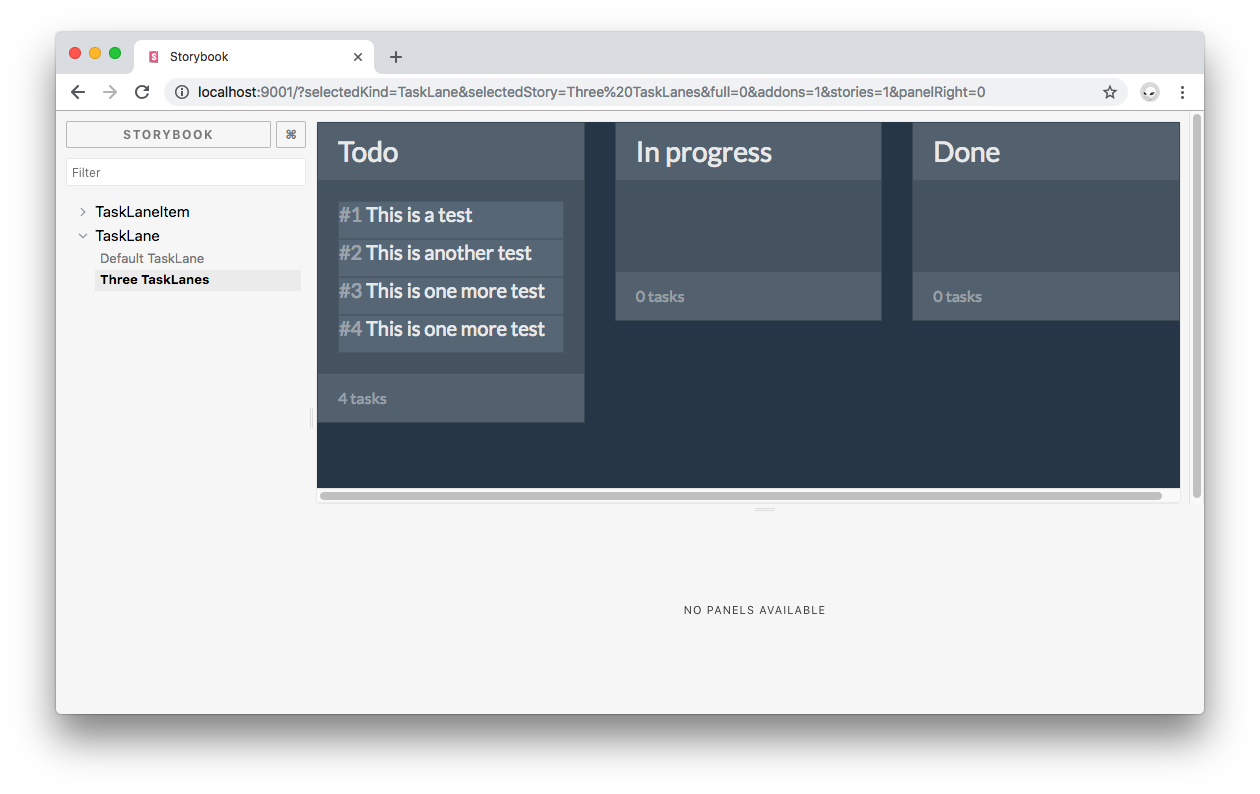
> If you see duplicate items, refresh the Storybook window.
Now, drag and drop items between lanes. Each item should remember its new lane and its new position in the lane. Cool, isn't it?
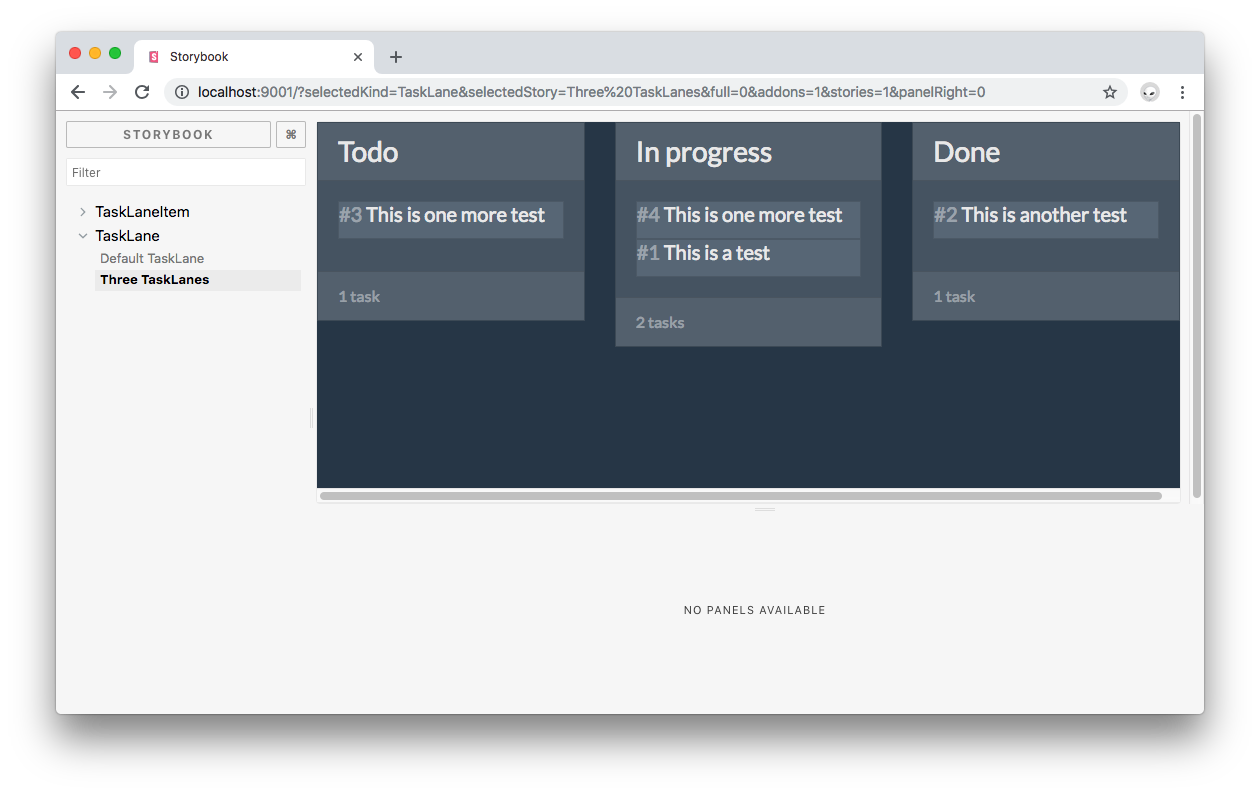
In practice, you can create components from the bottom to the top: start with the small presentational components, tweak their style and content, then move to the larger components that rely on component composition for their presentation. Storybook lets you focus on treating each component like a truly modular independent piece of the UI puzzle.
As an additional benefit for large teams, creating a component library allows you to reuse components not only within a project but across organization projects that require to have a consistent look and feel for effective branding.
## Recap
You have learned how to preview the presentation of basic and complex components in an interactive way through Storybook's component library while being able to access and use Vue plugins such as `vuex`. Storybook can be also used to preview actions triggered through components such as firing up a function upon clicking a button as well as for UI testing. These are more advanced use cases. Let me know in the comments below if you'd like to read a blog post about extending Storybook for Vue to cover event handling and testing.
> At Auth0, we have been using Storybook extensively. To learn more about our experience creating component libraries with Storybook and the benefits we have found, please read our [_"Setting Up a Component Library with React and Storybook"_](https://auth0.com/blog/setting-up-a-component-library-with-react-and-storybook/) post.
## Auth0: Never Compromise on Identity
So you want to build an application? You're going to need to set up user authentication. Implementing it from scratch can be complicated and time-consuming, but with Auth0 it can be done in minutes. For more information, visit [https://auth0.com](https://auth0.com/), follow [@auth0 on Twitter](https://twitter.com/auth0), or watch the video below: