---
title: "Next.js Practical Introduction: Styling and Theming"
description: "Learn how to handle styling and theming while using Next.js to build server-side rendered React applications."
authors:
- name: "Dan Arias"
url: "https://auth0.com/blog/authors/dan-arias/"
date: "Jul 23, 2019"
category: "Developers,Deep Dive,Next"
tags: ["nextjs", "next", "react", "ssr", "server-side-rendering", "node", "express", "front-end", "zeit"]
url: "https://auth0.com/blog/next-js-practical-introduction-for-react-developers-part-2/"
---
# Next.js Practical Introduction: Styling and Theming
In this tutorial series, you'll be provided with a practical introduction to how Next.js can help you build web applications.
Created by [Vercel, a cloud company for hosting frontends and serverless functions](https://vercel.com/home), Next.js is a React framework capable of creating applications that run both on the client and the server, otherwise known as Universal JavaScript applications. This framework helps you build universal apps faster by streamlining basic features like client-side routing and page layout while simplifying advance features like server-side rendering and code splitting.
In the first part of the series, you learned [how to create pages and layouts](https://auth0.com/blog/next-js-practical-introduction-for-react-developers-part-1/). In this second, you'll learn how to apply styles to pages and create a theme [using Next.js 9](https://nextjs.org/blog/next-9), the most recent framework version at the time of writing. [Familiarity with the React library](https://auth0.com/blog/react-tutorial-building-and-securing-your-first-app/) is recommended.
## Setting Up the Project
If you are starting from this part, you can get the app that was built in the previous, first part by cloning the repo and checking out the `part-1` branch:
```bash
git clone git@github.com:auth0-blog/whatabyte-next-intro.git whatabyte
cd whatabyte
git checkout part-1
```
If you haven't [connected to GitHub using SSH](https://help.github.com/en/articles/connecting-to-github-with-ssh), please clone the repo with the HTTPS URL:
```bash
git clone https://github.com/auth0-blog/whatabyte-next-intro.git whatabyte
cd whatabyte
git checkout part-1
```
The repository is cloned into the directory called `whatabyte` on your local machine. If the directory doesn't exist, it is created.
With the branch checked out, proceed to install the project dependencies:
```bash
npm install
```
Finally, execute the following command in your terminal to run the app:
```bash
npm run dev
```
To see the app in action and start following the tutorial, visit [`http://localhost:3000`](http://localhost:3000) on your browser.
## Styling Components the Next.js Way
The application created in the first part of the series uses the `style` property of React components to specify component styling through JavaScript objects. That's handy but it won't let you create global CSS rules for your application. What you can do instead is to follow the CSS-in-JS component styling strategy that Next.js implements natively.
Next.js is preloaded with a CSS-in-JS framework called [`styled-jsx`](https://github.com/zeit/styled-jsx). This framework offers full, scoped, and component-friendly CSS support for JSX rendered on the client and/or the server-side. This lets you write scoped CSS rules within your JSX component templates. The style defined for a component only affects that component and _nothing_ else — not even its children!
To see this in practice, first convert the `Header` component from using a style object to using `styled-jsx`. Open `components/Header.js` and update the component template as follows:
```javascript
// components/Header.js
const Header = () => (
HEADER
);
export default Header;
```
To use `styled-jsx`, you need to add the `style jsx` tag as a sibling or child of the JSX template element that you want to modify. The template of `Header` only has one element, thus, adding the `style jsx` tag as a sibling makes the most sense.
> As an alternative, you can render an array of components or use [React fragments](https://reactjs.org/docs/fragments.html).
CSS rules are written inside a template string that is placed within the `style jsx` tag. You write the rules the same way that you'd write them in a regular CSS file following any valid naming convention you prefer — as long as you are consistent — and terminating them with a semicolon.
The downside of using a template string to write CSS rules is that you lose IDE and code editor assistance to write them, for example. There's a candid debate about whether or not React developers should use CSS-in-JS.
> The articles ["What’s Wrong with CSS-in-JS?"](http://bradfrost.com/blog/link/whats-wrong-with-css-in-js/) by Brad Frost and ["Bridging the Gap Between CSS and JavaScript: CSS-in-JS"](https://css-tricks.com/bridging-the-gap-between-css-and-javascript-css-in-js/) by Matija Marohnić can help you form your own opinions about the topic.
The engineers that created Next.js suggest using CSS-in-JS to avoid practical issues that come with traditional CSS-file-based styling — especially in relation to the server-side rendering of React.
As an exercise, convert the `NavBar` and `Layout` components to using `style jsx`. When you are done, come back and compare your results:
```javascript
// components/NavBar.js
const NavBar = () => (
NAVBAR
);
export default NavBar;
```
```javascript
// components/Layout.js
import Head from "next/head";
import Header from "./Header";
import NavBar from "./NavBar";
const Layout = props => (
WHATABYTE
{props.children}
);
export default Layout;
```
How did you do? Notice that you can use the classes you specified for each template tag within the `style jsx` template string. This makes it easier and more natural to style a more complex component.
> Forgetting to change a comma to a semicolon will break the whole styling.
The flexible layout defined within the `Layout` component has a problem though: The `.Content` container doesn't stretch out to fill the space left by the `Header` and `NavBar` components. For the `.Content` container to enforce its `flex: 1` style property, it needs to have a frame of reference for sizing coming from the elements that enclose it, in this case the `.Layout` container.
The `height` of the `.Layout` container is specified to be `100%`; however, this container is not filling out the full height of the viewport. In turn, this could only mean that its enclosing container doesn't have a height of `100%`.
Inspecting the structure of the Index page using your browser developer tools will reveal that the top-level container for the app is a `div` element with the ID `__next`. That element has no height or width; therefore, its descendant elements have no height value to inherit and reference for dynamic sizing.
To fix this, you need to assign the `#__next` container a `height` and `width` of `100%` with one caveat: Anything within the `pages` subdirectory represents a web page of your front-end application. Next.js wants you to think about these pages as complete and self-sufficient. This means that every page knows how to render its content correctly independently of any other page.
The solution to this layout problem is then to tell each page in your application how to render the `html`, `body` and `#__next` elements. The best place to do this is by defining global styles in the existing `style jsx` tag of your `Layout` component template.
Open and update `Layout.js` with the following code that defines the same global styles present in the `index.css` file of a standard `create-react-app` application:
```javascript
// components/Layout.js
import Head from "next/head";
import Header from "./Header";
import NavBar from "./NavBar";
const Layout = props => (
WHATABYTE
{props.children}
);
export default Layout;
```
You added the `global` keyword after the `style jsx` tag name. As the word may infer, adding `global` to the tag lets you define CSS rules that affect the whole application.
Save your code and look at the browser. Now, the layout flows nicely and the content container adapts to the space left by the header and navigation bar.
I think that learning how to layout components effectively is one of the most important aspects of front-end development. For that reason, I felt it was important to go over styling and laying out DOM elements before going into topics like routing.
The `Layout` component is starting to look bloated and the CSS-in-JS is hard to write and even indent properly. To make styling and creating global style classes easier, you'll switch to using [SCSS stylesheets](https://sass-lang.com/documentation/syntax#scss) in the application.
## Styling Next.js Applications using SCSS Files
To use `.scss` files you need extra modules available through plugins. These modules configure sensible defaults for server rendered applications.
In the terminal, run the following to install the Next.js SASS plugin:
```bash
npm install --save @zeit/next-sass node-sass
```
SCSS stylesheets are compiled to `.next/static/css`. Next.js automatically adds the `.css` files to the HTML. In production, a chunk hash is added so that styles can be updated when a new version of the stylesheet is deployed.
Create a `next.config.js` under the `whatabyte` directory:
```bash
touch next.config.js
```
* Windows PowerShell:
```bash
ni next.config.js
```
Populate this file as follows:
```javascript
// next.config.js
const withSass = require("@zeit/next-sass");
module.exports = withSass();
```
The `next.config.js` file is a regular Node.js module that lets you create [custom Next.js configuration](https://nextjs.org/docs#custom-configuration) used by the server to build the application. To make the server aware of this new custom configuration you need to restart the server. Go to the terminal tab or window running the server, stop it, and execute `npm run dev` again.
Now, under the `components` directory, create an SCSS file named `Header.scss`:
```bash
touch components/Header.scss
```
* Windows PowerShell:
```bash
ni components/Header.scss
```
Fill the `Header.scss` file with this:
```scss
// components/Header.scss
.Header {
display: flex;
justify-content: flex-start;
align-items: center;
height: 50px;
width: 100%;
padding: 0 20px;
font-family: Arial, sans-serif;
font-size: 24px;
font-weight: bold;
color: white;
text-transform: uppercase;
background: crimson;
cursor: pointer;
}
```
Open, `Header.js`, delete the `style jsx` tag and import the SCSS stylesheet as follows:
```javascript
// components/Header.js
import "./Header.scss";
const Header = () =>
HEADER
;
export default Header;
```
Save your changes and look at the browser. New CSS rules make the `Header` component look better. The `Header.js` file also looks lighter. It may be easier for you to reason about styling by using SCSS files; however, if you want, feel free to continue this tutorial using CSS-in-JS if you liked that strategy better.
To add SCSS stylesheets for `NavBar` and `Layout`, create the `NavBar.scss` and `Layout.scss` files respectively under the `components` directory:
```bash
touch components/NavBar.scss components/Layout.scss
```
* Windows PowerShell:
```bash
ni components/NavBar.scss, components/Layout.scss
```
Populate these files as follows:
```scss
// components/NavBar.scss
.NavBar {
display: flex;
justify-content: space-around;
align-items: center;
height: 60px;
width: 100%;
padding: 10px 0;
background: crimson;
font-family: Arial, sans-serif;
font-size: 22px;
color: white;
box-shadow: 0px -2px 15px rgba(50, 50, 50, 0.45);
a {
color: inherit;
text-decoration: none;
}
.active {
color: navy;
}
}
```
```scss
// components/Layout.scss
.Layout {
flex: 1;
display: flex;
flex-direction: column;
height: 100%;
width: 100%;
.Content {
flex: 1;
display: flex;
flex-direction: column;
}
}
```
Now, import each stylesheet into its respective component while deleting the CSS-in-JS logic:
```javascript
// components/NavBar.js
import "./NavBar.scss";
const NavBar = () =>
NAVBAR
;
export default NavBar;
```
```javascript
// components/Layout.js
import Head from "next/head";
import Header from "./Header";
import NavBar from "./NavBar";
import "./Layout.scss";
const Layout = props => (
WHATABYTE
{props.children}
);
export default Layout;
```
However, the layout is broken again since you've lost the definition of CSS global rules. Not to worry, create an `index.scss` file under the `pages` subdirectory and populate it as follows:
```bash
touch pages/index.scss
```
* Windows PowerShell:
```bash
ni pages/index.scss
```
```scss
// pages/index.scss
* {
box-sizing: border-box;
}
html, body, #__next {
height: 100%;
width: 100%;
}
body {
margin: 0;
padding: 0;
font-family: -apple-system, BlinkMacSystemFont, "Segoe UI", "Roboto", "Oxygen",
"Ubuntu", "Cantarell", "Fira Sans", "Droid Sans", "Helvetica Neue",
sans-serif;
-webkit-font-smoothing: antialiased;
-moz-osx-font-smoothing: grayscale;
}
code {
font-family: source-code-pro, Menlo, Monaco, Consolas, "Courier New",
monospace;
}
#root {
display: flex;
flex-direction: column;
}
```
Import this `index.scss` into the `Index` component that lives in `pages/index.js`:
```javascript
// pages/index.js
import Layout from "../components/Layout";
import "./index.scss";
const Index = () => Welcome to WHATABYTE!;
export default Index;
```
Refresh the page and observe how the interface layout is fixed again. However, is this the best approach to managing global application styling?
It was discussed earlier that an architecture principle of Next.js is to create pages that are complete and self-sufficient. JavaScript files inside the `pages` directory represent a page or view of the application. If you add other pages, you'd need to import that `index.scss` file into them for the layout to show correctly. Thus, a better solution is to move `index.scss` from `pages` to the `components` directory and have the `Layout` component import it.
First, **you must delete** the `index.scss` import from `index.js` to avoid page build errors.
Then, move the `index.scss` stylesheet to the `components` directory:
```bash
mv pages/index.scss components/index.scss
```
Finally, update `components/Layout.js` as follows:
```javascript
// components/Layout.js
// Other imports
import "./Layout.scss";
import "./index.scss";
// Layout component definition
export default Layout;
```
Refresh the page and the layout should look correct.
You could copy the content of `index.scss` and paste it into `Layout.scss`; however, it's better to keep those global styles on their own file. If you ever need to use another component as the core layout, you then simply import that file into that component. The filename also helps you quickly locate it among the other files.
And with that, you are done learning how to style Next.js components! It was a long journey but it's well worth it to understand how CSS works in any application as it's the core engine to position and structure anything on a web page.
What would you like to do... Next? What about creating a theme to make the styling maintenance of your app easier?
## Creating a Theme for a Next.js Application using SCSS
Centralizing the styling of an application through a theme helps with brand consistency and improves application maintenance. Things like colors and fonts should be placed within SCSS partials that can be imported in component stylesheets. That way, if you need to change the hex value of a color, you only need to make the change in one place and the whole application becomes aware of that change.
Under the `whatabyte` directory, create a `theme` subdirectory:
```bash
mkdir theme
```
Create the following SCSS files under the `theme` subdirectory and populate their content accordingly:
```bash
touch theme/_fonts.scss theme/_colors.scss theme/_theme.scss
```
* Windows PowerShell:
```bash
ni theme/_fonts.scss, theme/_colors.scss, theme/_theme.scss
```
* `_fonts.scss`:
```scss
// theme/_fonts.scss
@import url('https://fonts.googleapis.com/css?family=Raleway:800|Merriweather+Sans|Share+Tech+Mono');
$logo-font: 'Share Tech Mono', monospace;
$header-font: 'Raleway', sans-serif;
$core-font: 'Merriweather Sans', sans-serif;
```
* `_colors.scss`:
```scss
// theme/_colors.scss
$primary: #FFFFFF;
$primary-light: #ffffff;
$primary-dark: #cccccc;
$secondary: #2a3747;
$secondary-light: #546172;
$secondary-dark: #011120;
$on-primary: #000;
$on-primary-light: #A1A1A1;
$on-secondary: #fff;
$highlight: #FA4141;
```
* `_theme.scss`:
```scss
// theme/_theme.scss
@import "./fonts";
@import "./colors";
```
SCSS files that start with an underscore, `_`, are named partials and can be imported into other SCSS files. What you'll do next is import the `_theme.scss` partial into other SCSS component files and use its values. Update the following files under the `components` directory:
* `Header.scss`
```scss
// components/Header.scss
@import "../theme/theme";
.Header {
display: flex;
justify-content: flex-start;
align-items: center;
height: 50px;
width: 100%;
padding: 0 20px;
font-family: $logo-font;
font-size: 24px;
font-weight: bold;
color: $on-secondary;
text-transform: uppercase;
background: $highlight;
cursor: pointer;
}
```
* `Layout.scss`
```scss
// components/Layout.scss
@import "../theme/theme";
.Layout {
flex: 1;
display: flex;
flex-direction: column;
height: 100%;
width: 100%;
.Content {
flex: 1;
display: flex;
justify-content: center;
align-items: center;
width: 100%;
background: $secondary;
color: $on-secondary;
font-family: $core-font;
a {
color: inherit;
}
}
}
```
* `NavBar.scss`:
```scss
// components/NavBar.scss
@import "../theme/theme";
.NavBar {
display: flex;
justify-content: space-around;
align-items: center;
height: 60px;
width: 100%;
padding: 5px 0;
background: $primary;
font-family: $core-font;
font-size: 22px;
color: $on-primary-light;
box-shadow: 0px -2px 15px rgba(50, 50, 50, 0.45);
a {
color: inherit;
text-decoration: none;
}
.active {
color: $highlight;
}
}
```
The application is starting to look more polished and professional.
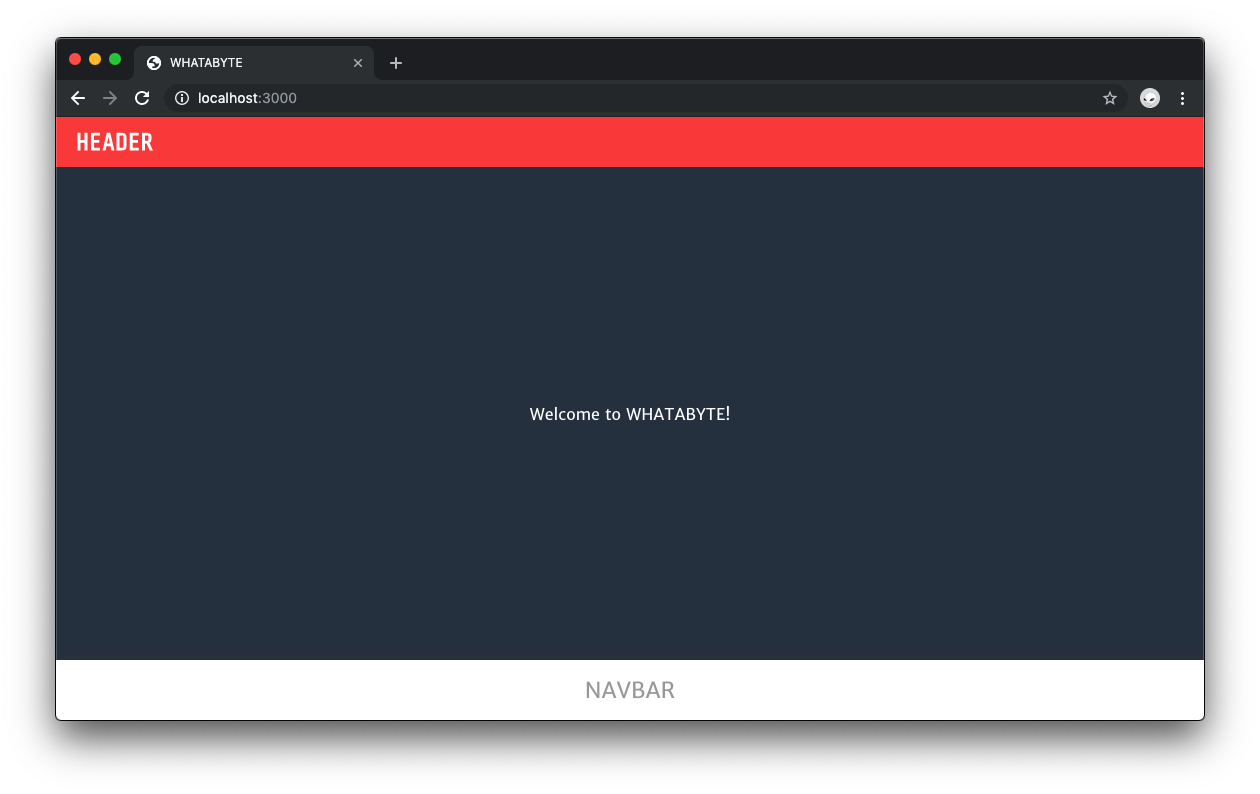
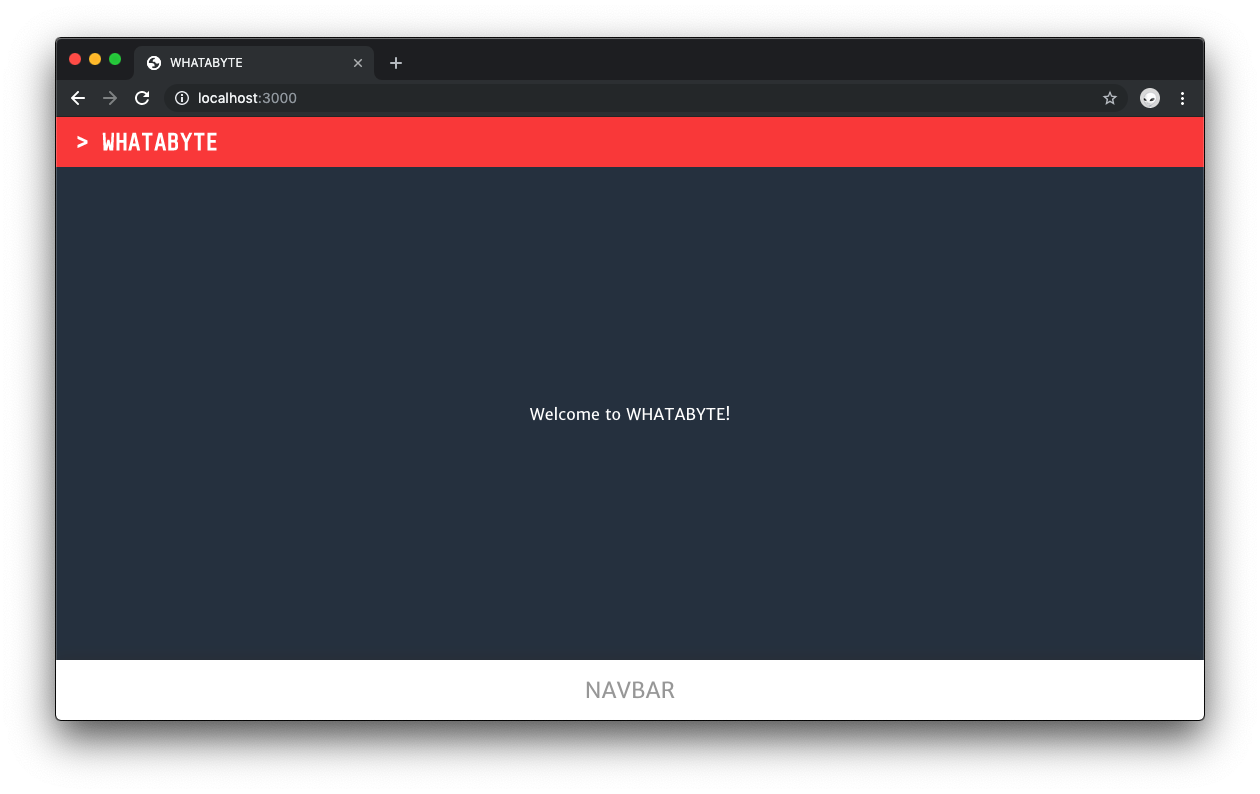
With the theme in place, you should replace the generic "HEADER" title of the app with "> WHATABYTE". Where do you think is the best place to pass that string as a prop?
As the `Layout` component is responsible for rendering the `Header` component, it should pass the title of the app as a prop to the `Header` component. Open `components/Layout.js` and update it as follows:
```javascript
// components/Layout.js
import Head from "next/head";
import Header from "./Header";
import NavBar from "./NavBar";
import "./Layout.scss";
import "./index.scss";
const Layout = props => {
const appTitle = `> WHATABYTE`;
return (
WHATABYTE
{props.children}
);
};
export default Layout;
```
The `Layout` function component now defines `appTitle` within its body and passes its value as the `appTitle` prop to the `Header` component. The header title should also link to the root page to create a better user experience. Naturally, update `components/Header.js` as follows:
```javascript
// components/Header.js
import Link from "next/link";
import "./Header.scss";
const Header = props => (
{props.appTitle}
);
export default Header;
```
Take a look at the browser and notice the new cool header title. If you ever want to change it, you'll just need to change the value of `appTitle` within the `Layout` component function. `Layout` acts as the data hydration point for the application user interface.
## Recap
In this tutorial, part 2 of our series, you have learned how to apply styles to pages using the [`styled-jsx`](https://github.com/zeit/styled-jsx) CSS-in-JS framework that comes bundled with Next.js. You also learned how to integrate Next.js with SCSS to apply styles and create a theme to serve as the look-and-feel foundation of your web app.
Notice in `components/NavBar.scss` the `.active` class embedded within the `.NavBar` class. What gives? This class would be useful to give a distinctive color to the active navigation UI element if you were using React Router `v4` with a `create-react-app` project.
To achieve that result, you need to learn how to implement navigation, routing, and use [React high-order components](https://reactjs.org/docs/higher-order-components.html) with Next.js, which is the topic of the next part!
Again, you can reference [Part 1 for creating pages and layouts, here](https://auth0.com/blog/next-js-practical-introduction-for-react-developers-part-1/).
### [Continue to Part 3: Next.js Navigation and Routing](https://auth0.com/blog/next-js-practical-introduction-for-react-developers-part-3/)