---
title: "Introduction to Progressive Web Apps (Offline First) - Part 1"
description: "Progressive Web Apps are the future. Implement offline functionality and make your mobile web app feel like a native app."
authors:
- name: "Prosper Otemuyiwa"
url: "https://auth0.com/blog/authors/prosper-otemuyiwa/"
date: "Dec 19, 2016"
category: "Developers,Tutorial,Progressive Web Apps"
tags: ["pwa", "service-workers", "offline"]
url: "https://auth0.com/blog/introduction-to-progressive-apps-part-one/"
---
# Introduction to Progressive Web Apps (Offline First) - Part 1
---
**TL;DR:** Web development has evolved significantly over the years allowing developers to deploy a website or web application and serve millions of people around the globe within minutes. With just a browser, a user can put in a URL and access a web application. With, **Progressive Web Apps**, developers can deliver amazing app-like experiences to users using modern web technologies. In this article, you'll get to understand how to build a progressive web app that works offline!
---
## Introduction to Progressive Web Apps
A progressive web application is basically a website built using modern web technologies but acts and feels like a mobile app. In 2015, *Alex Russell*, Google engineer, and *Frances Berriman* coined the term **Progressive Web Apps**. Google has been immensely working on making sure that progressive web apps can really give users that native-app like experience. The flow of a typical progressive web app goes thus:
* Starts out as accessible in tabs on the Web browser
* Shows the option of adding to the homescreen of the device
* Progressively starts exhibiting app-like properties such as offline usage, push notifications and background sync
Until now, mobile apps could do a lot of things that web apps couldn't really do. **Progressive Web Apps**, are web apps that try to do what mobile apps have been doing for a long time. They are web applications that combine the best of the web and the best of apps. **Progressive Web Apps**, can load very fast on slow network connections, work offline, send push notifications, and load on the home screen with the power of [Web App Manifest](https://www.w3.org/TR/appmanifest).
Remember the splash screen that native apps provide? Right now, the latest versions of Chrome on Android support the use of a splash screen to give your web app a native experience, all thanks to **Progressive Web Apps**.
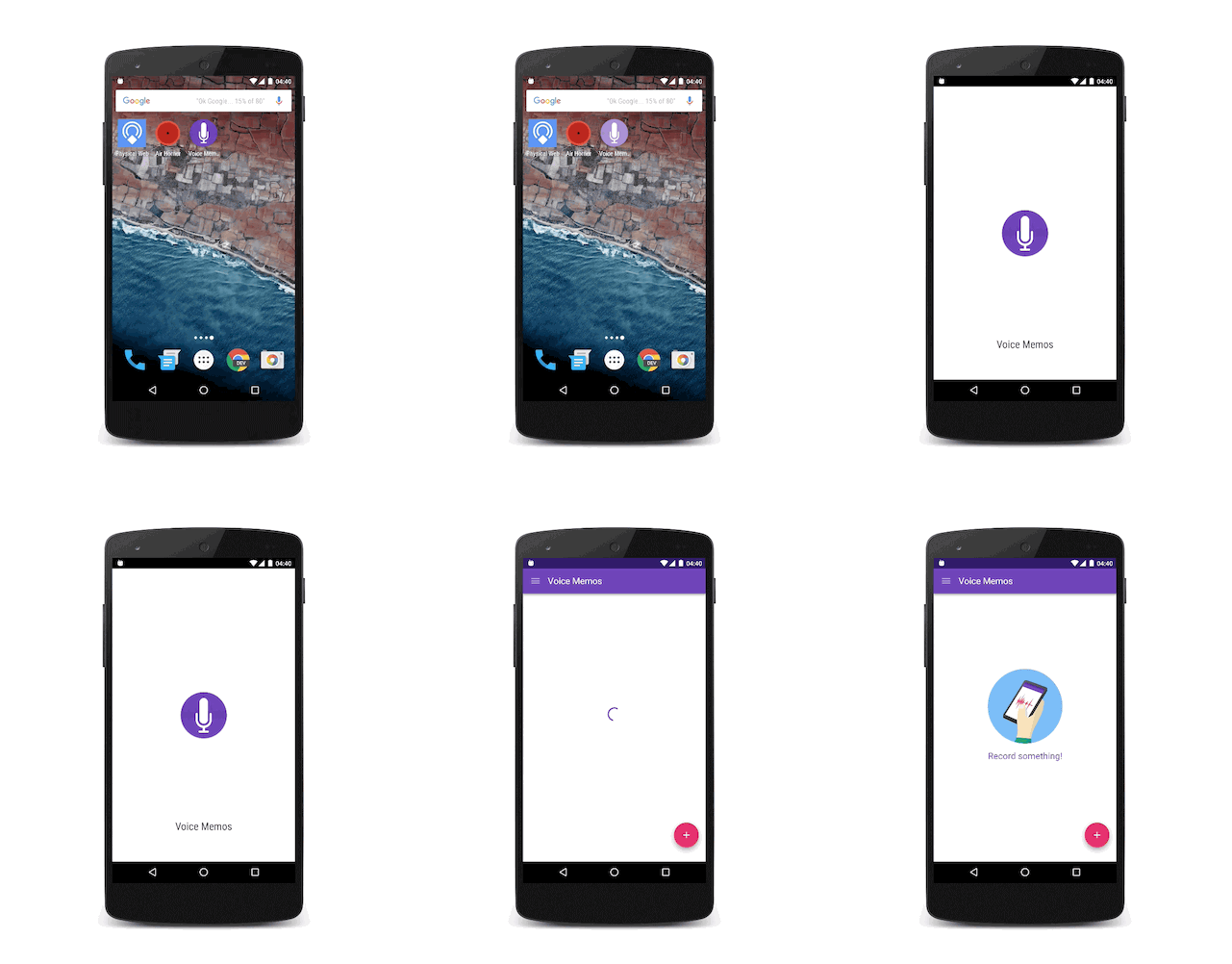
_Source: developers.google.com_
## Features of Progressive Web Apps
What does it mean for a web app to be progressive? This new class of web applications have characteristics that defines their existence. Without much ado, these are the features of progressive web apps:
* **Responsive:** The UI must fit the devices form factor: desktop, mobile, and tablet.
* **App-like:** When interacting with a progressive web app, it should feel like a native app.
* **Connectivity Independent:** It should work offline (via Service Workers) or in areas of low connectivity.
* **Re-engageable:** Through features like push notifications, users should be able to consistently engage and re-use the app.
* **Installable:** A user should be able to add it on their homescreen and just launch it from there whenever they need to re-use the app.
* **Discoverable:** Should be identified as applications and be discoverable by search engines.
* **Fresh:** Should be able to serve new content in the app when the user is connected to the internet.
* **Safe:** Should be served via HTTPS to prevent content-tampering and man-in-the-middle attacks.
* **Progressive:** Regardless of the browser choice, it should work for every user.
* **Linkable:** Easy to share via URL.
## Production Use Cases of Progressive Web Apps
Several developers and companies have re-developed their websites into progressive web apps. I'll give a summary of three significant products that are progresive web apps and the benefits they have accrued over time.
* **[Flipkart Lite](https://www.flipkart.com):** FlipKart is one of India's largest online shops. They created a progressive web app, **Flipkart Lite** that resulted in a 70% increase in conversions. They took advantage of the super-powers progressive web apps offer by using *service workers*, *push notifications*, *add to home screen*, *splash screen*, and *smooth animations* and it resulted in the following:
- 3x less data usage
- 40% higher re-engagement rate
- Users spend more time on the platform
- 70% conversion rate
_Stats: Google PWA Showcase_
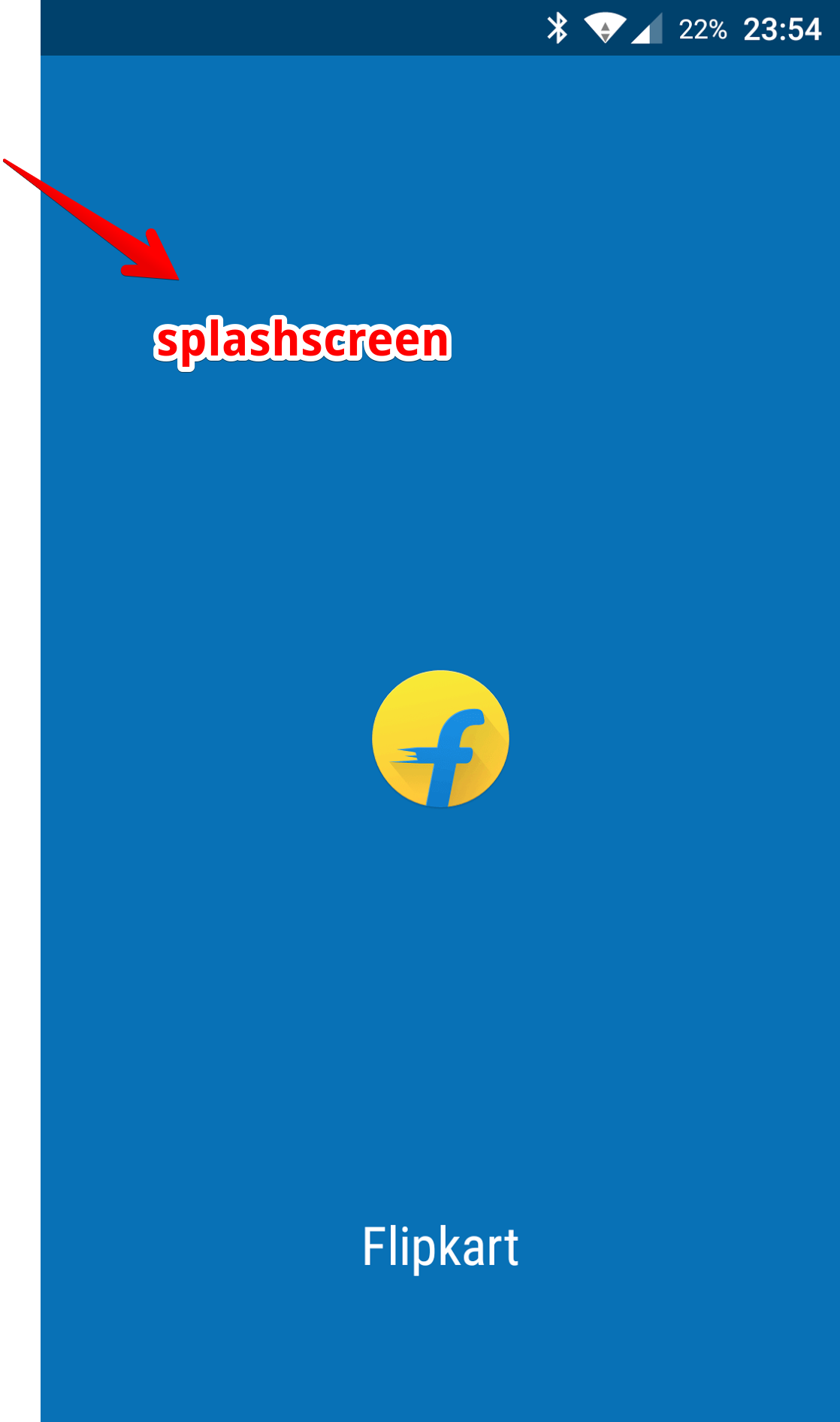
_Flipkart Splashscreen_
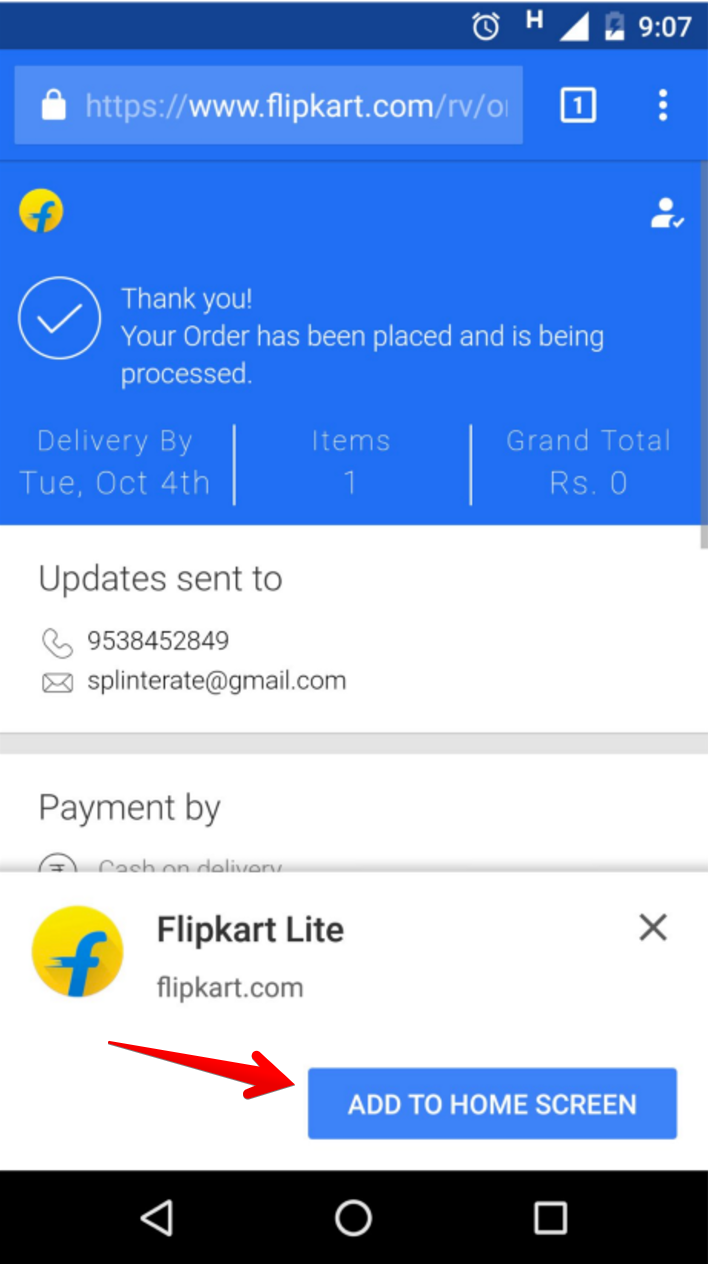
_Add to HomeScreen on Flipkart_
More information on the [case study here](https://developers.google.com/web/showcase/2016/pdfs/flipkart.pdf)
* **[Housing](https://housing.com):** Housing.com is one of India's foremost startups. They provide an online real estate platform in India. They created a progressive web app which resulted in a 38% increase in conversions across browsers and also the following:
- 40% lower bounce rate
- 10% longer average session
- 30% faster page load
_Stats: Google PWA Showcase_
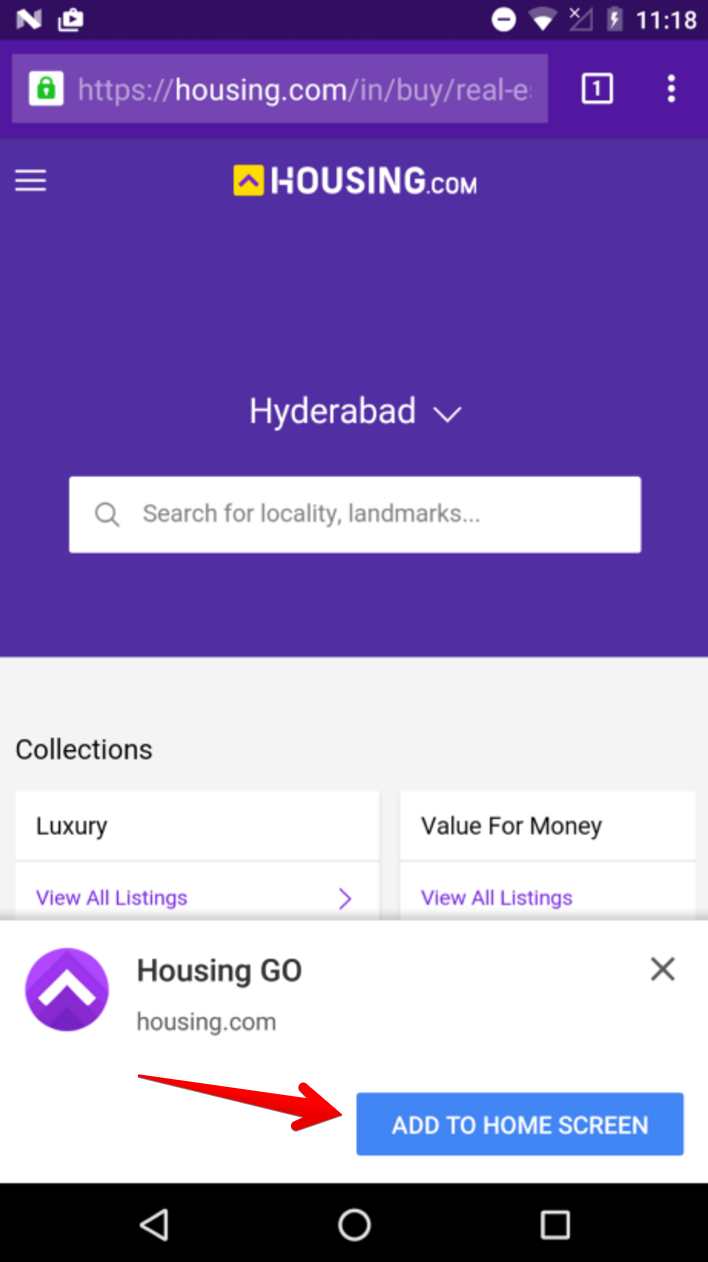
_Add to HomeScreen on Housing_
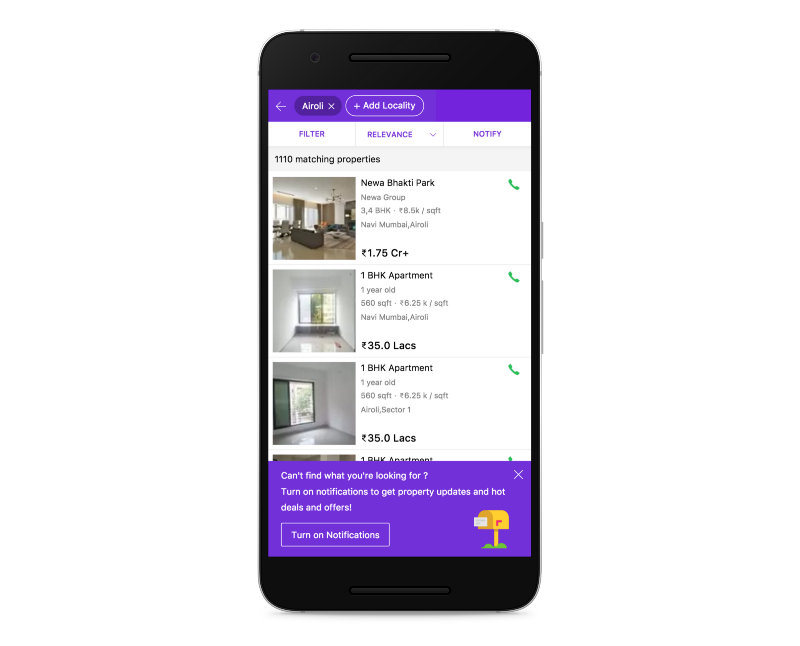
_Option to turn on Push Notifications_
More information on the [case study here](https://developers.google.com/web/showcase/2016/pdfs/housing.pdf)
* **[AliExpress](https://m.aliexpress.com/):** AliExpress, the very popular global online retail marketplace had the challenge of getting users to download their mobile app and re-engage as much as they wanted. To solve this challenge, they decided to created a progressive web app for their mobile web users and the results were very impressive:
- 104% increase in conversion rate for new users
- 74% increase in time spent per session across all browsers
- 2X more pages visited per session per user across all browsers
_Stats: Google PWA Showcase_
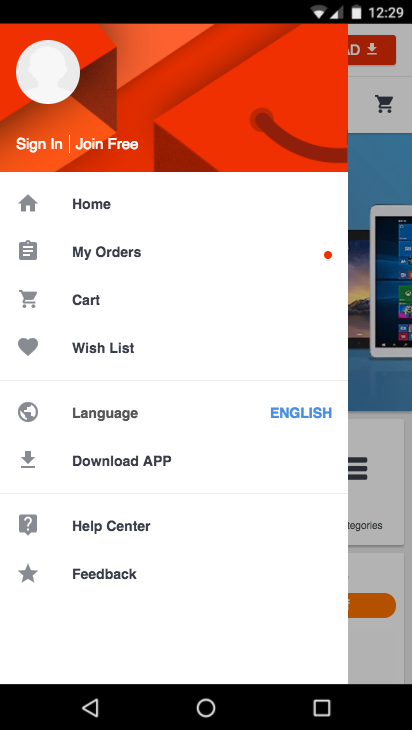
_AliExpress Mobile Navigation_

_AliExpress Mobile Homepage_
More information on the [case study here](https://developers.google.com/web/showcase/2016/pdfs/aliexpress.pdf)
These companies have benefitted immensely from deploying progressive web apps. Next, let's dive in further into one of the major components that makes up what we call a progressive web app, **Service Workers**.
## Service Workers
A service worker is a programmable proxy, a script, that your browser runs in the background. It has the ability to intercept, handle http requests and also respond to them in various ways. It responds to network requests, push notifications, connectivity changes and many more. Jeff Posnick, a Google engineer, gave one of the best explanation that I have seen:
> Service Worker is an air traffic controller. Think of your web apps requests as planes taking off. Service Worker is the air traffic controller that routes the requests. It can load from the network or even off the cache.
A Service worker can't access the DOM but it can make use of the [fetch](https://developer.mozilla.org/en-US/docs/Web/API/Fetch_API) and [Cache](https://developer.mozilla.org/en-US/docs/Web/API/Cache) APIs. You can use the service worker to cache all static resources, which automatically reduces network requests and improve performance. The Service worker can be used to display the application shell, inform users that they are disconnected from the internet and serve up a page for the user to interact with once they are offline.
A Service worker file, eg `sw.js` needs to be placed in the root directory like so:
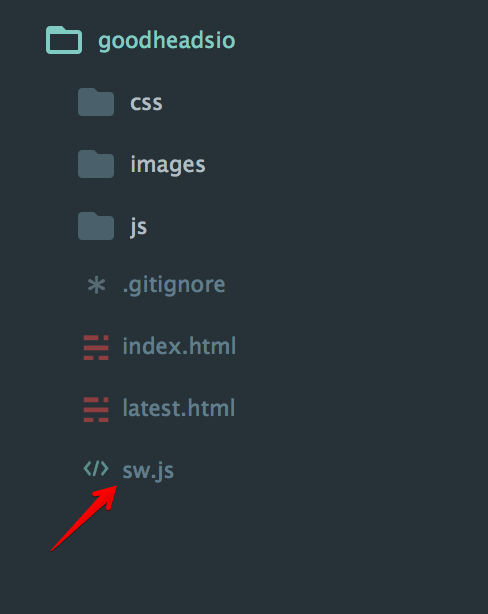
_Service Worker file in the root directory_
To get started with service workers in your progressive web app, you need to register the service worker in your app's js file. If your application's js file was `app.js`, then inside the file, we'll have a piece of JavaScript code like so:
```js
if ('serviceWorker' in navigator) {
navigator.serviceWorker
.register('./sw.js')
.then(function() { console.log('Service Worker Registered'); });
}
```
The piece of code above checks if the browser supports service workers, and if it does, registers the service worker file. Once the service worker is registered, we start to experience it's lifecycle the moment a user visits the page for the first time.
The Service Worker's Life Cycle goes thus:
* **Install** : An install event is triggered the first time a user visits the page. During this phase, the service worker is installed in the browser. During this installation, you can cache all the static assets in your web app like so:
```js
// Install Service Worker
self.addEventListener('install', function(event) {
console.log('Service Worker: Installing....');
event.waitUntil(
// Open the Cache
caches.open(cacheName).then(function(cache) {
console.log('Service Worker: Caching App Shell at the moment......');
// Add Files to the Cache
return cache.addAll(filesToCache);
})
);
});
```
- The `filesToCache` variable represents an array of all the files you want to cache
- The `cacheName` refers to the name given to the cache store
* **Activate**: This event is fired when the service worker starts up.
```js
// Fired when the Service Worker starts up
self.addEventListener('activate', function(event) {
console.log('Service Worker: Activating....');
event.waitUntil(
caches.keys().then(function(cacheNames) {
return Promise.all(cacheNames.map(function(key) {
if( key !== cacheName) {
console.log('Service Worker: Removing Old Cache', key);
return caches.delete(key);
}
}));
})
);
return self.clients.claim();
});
```
Here the service worker updates its cache whenever any of the app shell files change.
* **Fetch**: This event helps serve the app shell from the cache. `caches.match()` dissects the web request that triggered the event, and checks to see if it's available in the cache. It then either responds with the cached version, or uses `fetch` to get a copy from the network. The response is returned to the web page with `e.respondWith().`
```js
self.addEventListener('fetch', function(event) {
console.log('Service Worker: Fetch', event.request.url);
console.log("Url", event.request.url);
event.respondWith(
caches.match(event.request).then(function(response) {
return response || fetch(event.request);
})
);
});
```
At this time of writing, service workers are supported by Chrome, Opera and Firefox. Safari and Edge don't support it yet.
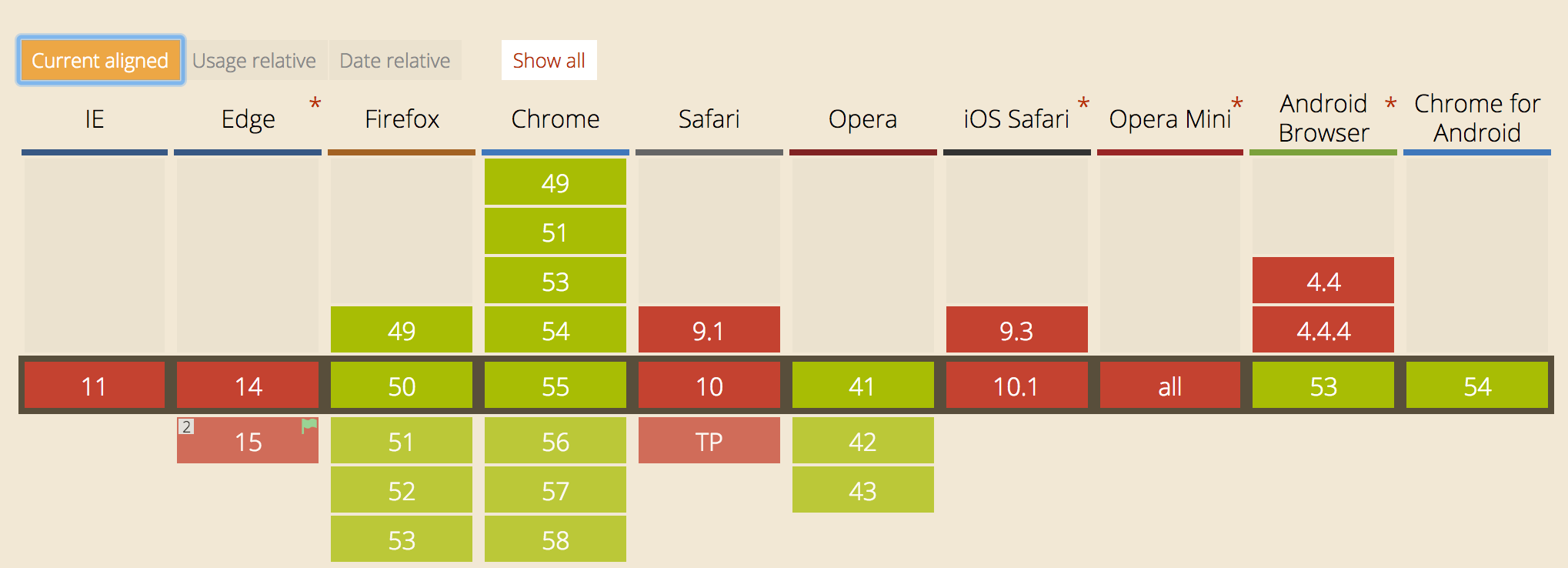
_Service Worker_
The [Service Worker Specification](https://github.com/w3c/ServiceWorker) and [primer](https://developers.google.com/web/fundamentals/getting-started/primers/service-workers) are very useful resources for learning more about Service Workers.
## Application Shell
Earlier in the post, I made mention of the `app shell` at various times. The application shell is the minimal HTML, CSS and JavaScript powering the user interface of your app. A progressive web app ensures that the application shell is cached to ensure fast and instant loading on repeated visits to the app.
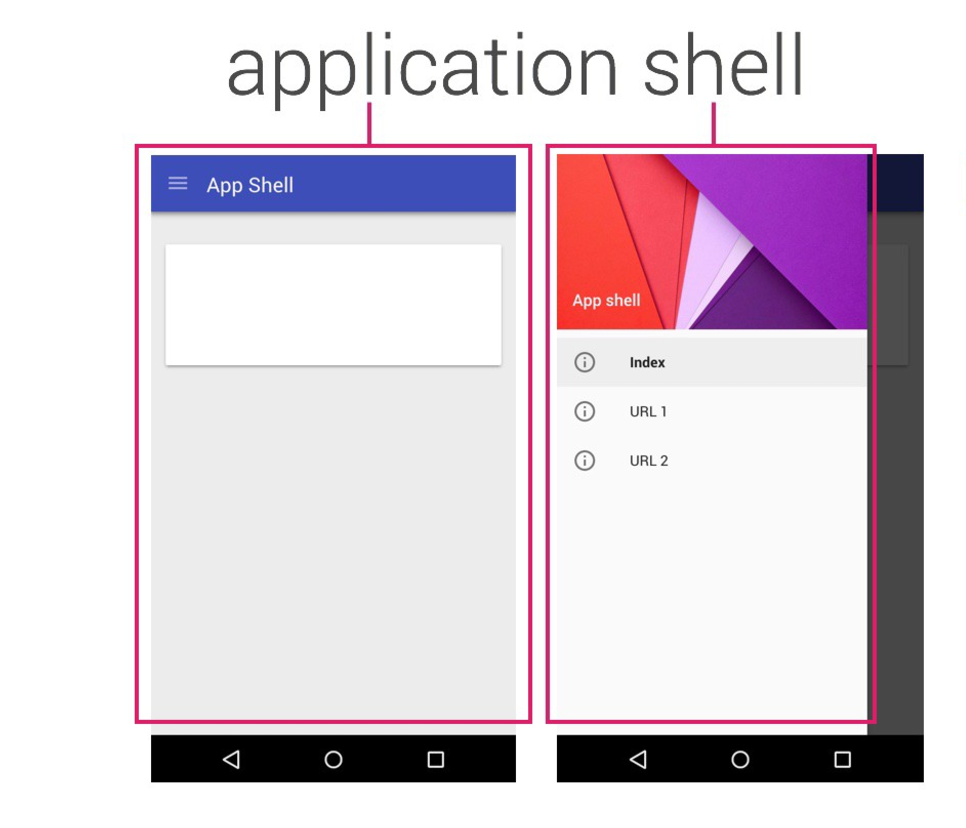
_Application Shell_
## What We Will Be Building
We'll build a simple progressive web app. The app simply tracks the latest commits from a particular open source project. As a progressive web app, it should:
- Work offline. A user should be able to view the latest commits without an internet connection
- The app should load instantly on repeated visits
- Once the push notification button is turned on, the user should get a notification on the latest commits to the open source project
- Be installable( added to the homescreen)
- Have a web application manifest
## Talk Is Cheap, Let's Build
Create an `index.html` and `latest.html` file in your code directory like so:
```html
Commits PWA
```
Create a `css` folder in your directory and grab the `style.css` file from [here](https://github.com/unicodeveloper/pwa-commits/blob/master/public/css/style.css).
Create a `js` folder in your directory and add the following files: `app.js`, `menu.js`, `offline.js`, `latest.js`, `toast.js`
```js
(function () {
'use strict';
var header = document.querySelector('header');
var menuHeader = document.querySelector('.menu__header');
//After DOM Loaded
document.addEventListener('DOMContentLoaded', function(event) {
//On initial load to check connectivity
if (!navigator.onLine) {
updateNetworkStatus();
}
window.addEventListener('online', updateNetworkStatus, false);
window.addEventListener('offline', updateNetworkStatus, false);
});
//To update network status
function updateNetworkStatus() {
if (navigator.onLine) {
header.classList.remove('app__offline');
menuHeader.style.background = '#1E88E5';
}
else {
toast('You are now offline..');
header.classList.add('app__offline');
menuHeader.style.background = '#9E9E9E';
}
}
})();
```
_offline.js_
The code above helps the user visually differentiate offline from online.
```js
(function () {
'use strict';
var menuIconElement = document.querySelector('.header__icon');
var menuElement = document.querySelector('.menu');
var menuOverlayElement = document.querySelector('.menu__overlay');
//Menu click event
menuIconElement.addEventListener('click', showMenu, false);
menuOverlayElement.addEventListener('click', hideMenu, false);
menuElement.addEventListener('transitionend', onTransitionEnd, false);
//To show menu
function showMenu() {
menuElement.style.transform = "translateX(0)";
menuElement.classList.add('menu--show');
menuOverlayElement.classList.add('menu__overlay--show');
}
//To hide menu
function hideMenu() {
menuElement.style.transform = "translateX(-110%)";
menuElement.classList.remove('menu--show');
menuOverlayElement.classList.remove('menu__overlay--show');
menuElement.addEventListener('transitionend', onTransitionEnd, false);
}
var touchStartPoint, touchMovePoint;
/*Swipe from edge to open menu*/
//`TouchStart` event to find where user start the touch
document.body.addEventListener('touchstart', function(event) {
touchStartPoint = event.changedTouches[0].pageX;
touchMovePoint = touchStartPoint;
}, false);
//`TouchMove` event to determine user touch movement
document.body.addEventListener('touchmove', function(event) {
touchMovePoint = event.touches[0].pageX;
if (touchStartPoint < 10 && touchMovePoint > 30) {
menuElement.style.transform = "translateX(0)";
}
}, false);
function onTransitionEnd() {
if (touchStartPoint < 10) {
menuElement.style.transform = "translateX(0)";
menuOverlayElement.classList.add('menu__overlay--show');
menuElement.removeEventListener('transitionend', onTransitionEnd, false);
}
}
})();
```
_menu.js_
The code above is responsible for the animation of the menu ellipsis button
```js
(function (exports) {
'use strict';
var toastContainer = document.querySelector('.toast__container');
//To show notification
function toast(msg, options) {
if (!msg) return;
options = options || 3000;
var toastMsg = document.createElement('div');
toastMsg.className = 'toast__msg';
toastMsg.textContent = msg;
toastContainer.appendChild(toastMsg);
//Show toast for 3secs and hide it
setTimeout(function () {
toastMsg.classList.add('toast__msg--hide');
}, options);
//Remove the element after hiding
toastMsg.addEventListener('transitionend', function (event) {
event.target.parentNode.removeChild(event.target);
});
}
exports.toast = toast; //Make this method available in global
})(typeof window === 'undefined' ? module.exports : window);
```
The code above is responsible for app-like toast notification pop-up timed widget.
The `latest.js` and `app.js` can be empty for now.
Now, spin up your app using a local server, e.g [http-server](https://www.npmjs.com/package/http-server), your web app should look like this:
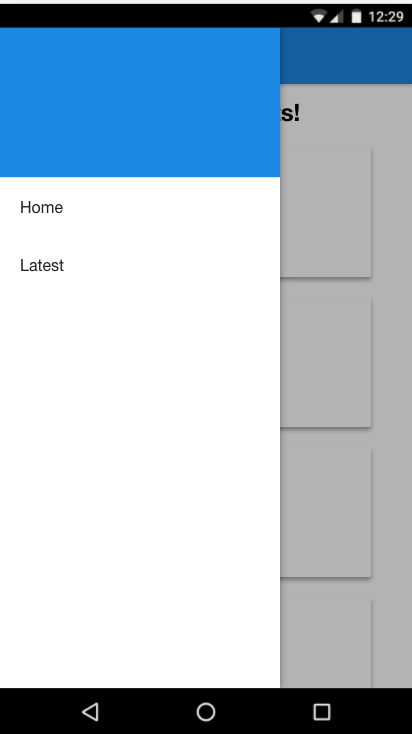
_Side menu_

_Index Page_
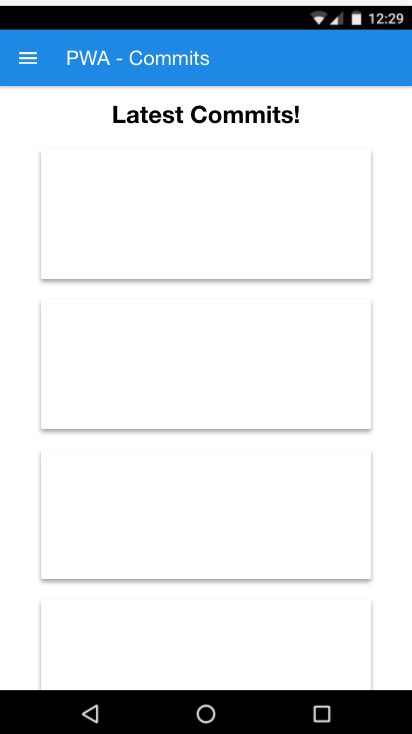
_Latest Page_
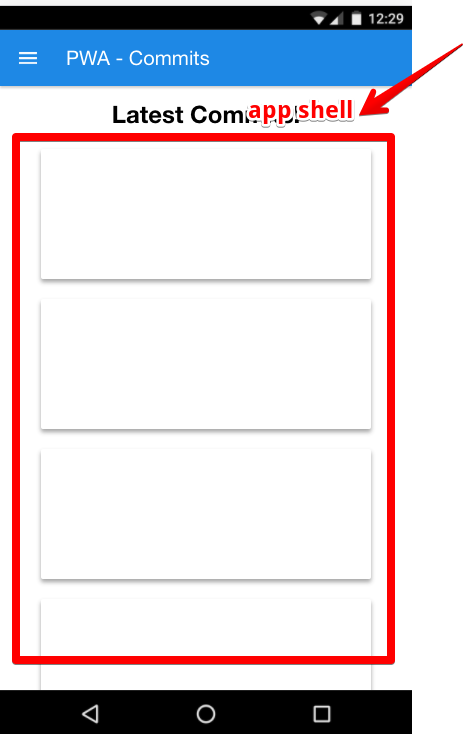
_Application Shell_
Your application shell is also highlighted above. No dynamic content loaded yet. Next, we need to fetch commits from Github's API.
### Fetch Dynamic Content
Open up your `latest.js` file and add the code below:
```js
(function() {
'use strict';
var app = {
spinner: document.querySelector('.loader')
};
var container = document.querySelector('.container');
// Get Commit Data from Github API
function fetchCommits() {
var url = 'https://api.github.com/repos/unicodeveloper/resources-i-like/commits';
fetch(url)
.then(function(fetchResponse){
return fetchResponse.json();
})
.then(function(response) {
var commitData = {
'first': {
message: response[0].commit.message,
author: response[0].commit.author.name,
time: response[0].commit.author.date,
link: response[0].html_url
},
'second': {
message: response[1].commit.message,
author: response[1].commit.author.name,
time: response[1].commit.author.date,
link: response[1].html_url
},
'third': {
message: response[2].commit.message,
author: response[2].commit.author.name,
time: response[2].commit.author.date,
link: response[2].html_url
},
'fourth': {
message: response[3].commit.message,
author: response[3].commit.author.name,
time: response[3].commit.author.date,
link: response[3].html_url
},
'fifth': {
message: response[4].commit.message,
author: response[4].commit.author.name,
time: response[4].commit.author.date,
link: response[4].html_url
}
};
container.querySelector('.first').innerHTML =
"
Message: " + response[0].commit.message + "
" +
"
Author: " + response[0].commit.author.name + "
" +
"
Time committed: " + (new Date(response[0].commit.author.date)).toUTCString() + "
";
app.spinner.setAttribute('hidden', true); //hide spinner
})
.catch(function (error) {
console.error(error);
});
};
fetchCommits();
})();
```
In addition, reference the `latest.js` script in your `latest.html` file like so:
``` html
```
Also, add the spinner to your `latest.html` file like so:
``` html
....
```
In the `latest.js` code, you can observe that we are fetching the commits from Github's API and appending them to the DOM. Now our `latest.html` page should look like this:
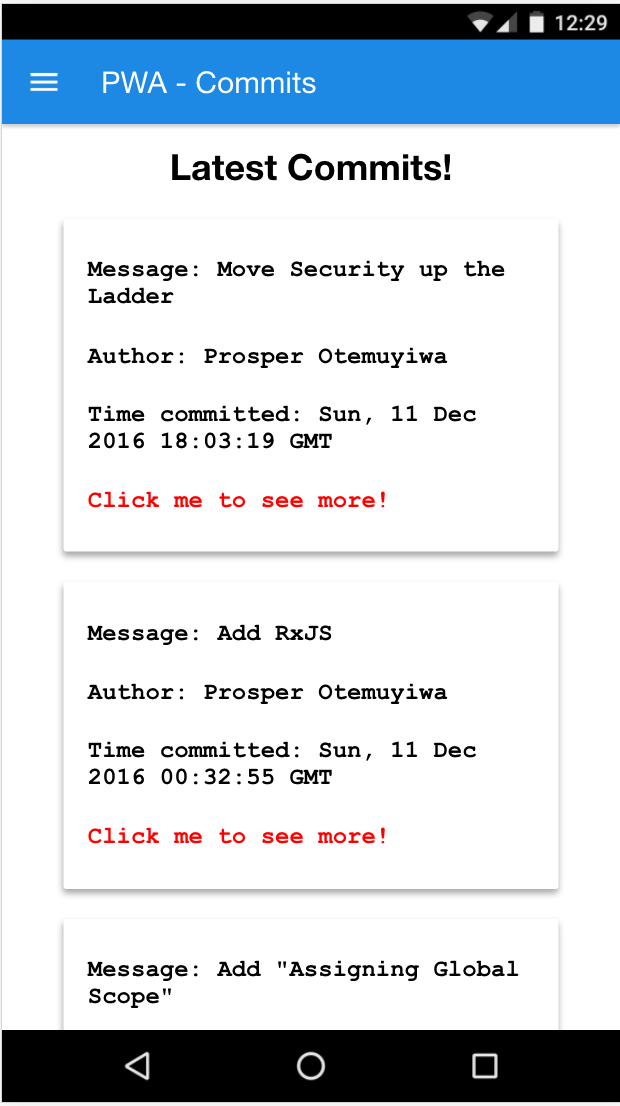
_Latest.html page_
### Precache the App Shell with Service Workers
We need to cache our app shell using a service worker to ensure our app loads super-fast and work offline.
* First, create a service worker file in your root directory. Name it `sw.js`
* Second, Open up your `app.js` file and register the service worker by adding this piece of code like so:
```js
if ('serviceWorker' in navigator) {
navigator.serviceWorker
.register('./sw.js')
.then(function() { console.log('Service Worker Registered'); });
}
```
* Open the `sw.js` file and add this piece of code like so:
```js
var cacheName = 'pwa-commits-v3';
var filesToCache = [
'./',
'./css/style.css',
'./images/books.png',
'./images/Home.svg',
'./images/ic_refresh_white_24px.svg',
'./images/profile.png',
'./images/push-off.png',
'./images/push-on.png',
'./js/app.js',
'./js/menu.js',
'./js/offline.js',
'./js/toast.js'
];
// Install Service Worker
self.addEventListener('install', function(event) {
console.log('Service Worker: Installing....');
event.waitUntil(
// Open the Cache
caches.open(cacheName).then(function(cache) {
console.log('Service Worker: Caching App Shell at the moment......');
// Add Files to the Cache
return cache.addAll(filesToCache);
})
);
});
// Fired when the Service Worker starts up
self.addEventListener('activate', function(event) {
console.log('Service Worker: Activating....');
event.waitUntil(
caches.keys().then(function(cacheNames) {
return Promise.all(cacheNames.map(function(key) {
if( key !== cacheName) {
console.log('Service Worker: Removing Old Cache', key);
return caches.delete(key);
}
}));
})
);
return self.clients.claim();
});
self.addEventListener('fetch', function(event) {
console.log('Service Worker: Fetch', event.request.url);
console.log("Url", event.request.url);
event.respondWith(
caches.match(event.request).then(function(response) {
return response || fetch(event.request);
})
);
});
```
Like I explained in the earlier part of this post, all our assets are in `filesToCache` array. As the service worker gets installed, it opens the cache in the browser and adds all the files we defined in the array to the `pwa-commits-v3` cache. The `install` event fires once the service worker is already installed. This phase ensures that your service worker updates its cache whenever any of the app shell files change. The `fetch` event phase serves the app shell from the cache.
**Note:** Check out Google's [sw-toolbox](https://github.com/GoogleChrome/sw-toolbox) and [sw-precache](https://github.com/GoogleChrome/sw-precache)libraries for easier and better way of precaching your assets and generating service workers.
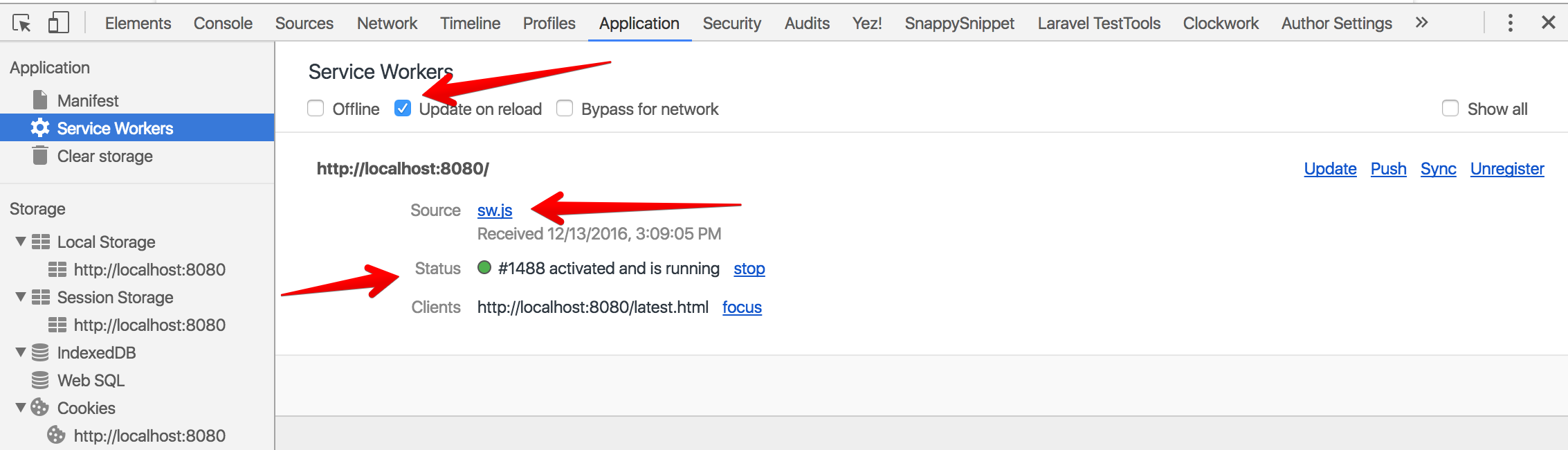
Now reload your web app and open **DevTools**. Go the **Service Worker** pane on the **Application** tab.
*Note:* Ensure, you enable the `Update on reload` checkbox to force the service worker to update on every page reload.
### Works Offline or Not?
Now, reload your page and then go to the `Cache Storage` pane on the `Application` tab of Chrome DevTools. Expand the section and you should see the name of our app shell cache listed on the left-hand side like so:
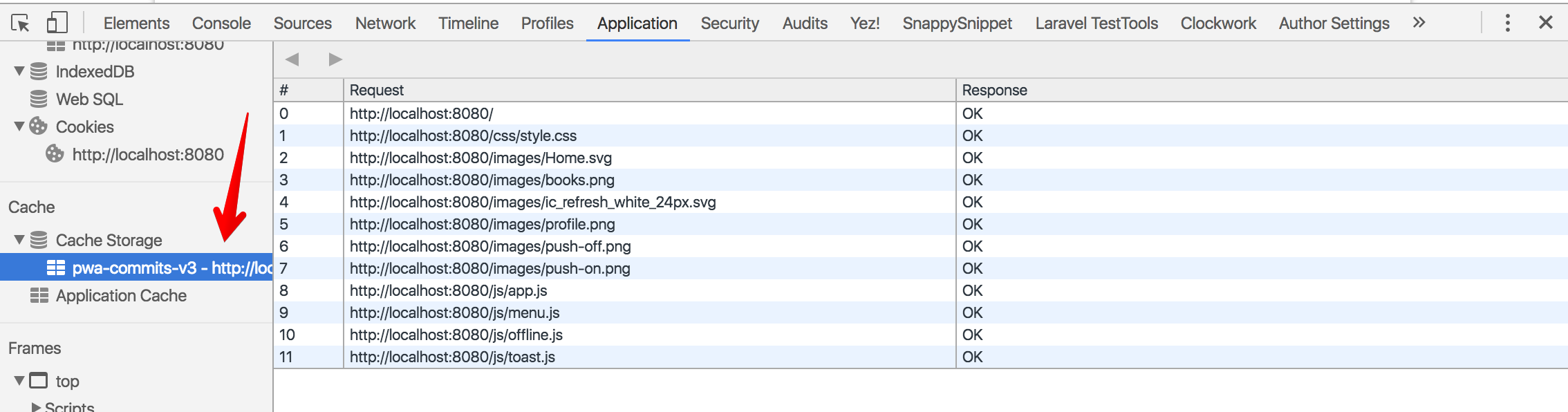
_Cache Storage_
When you click on your app shell cache you can see all of the resources that it has currently cached. Let's test out it's offline capability now. Head over to the **Service Worker** pane again and tick the **Offline** checkbox. A small yellow warning icon should appear next to the **Network** tab like so:
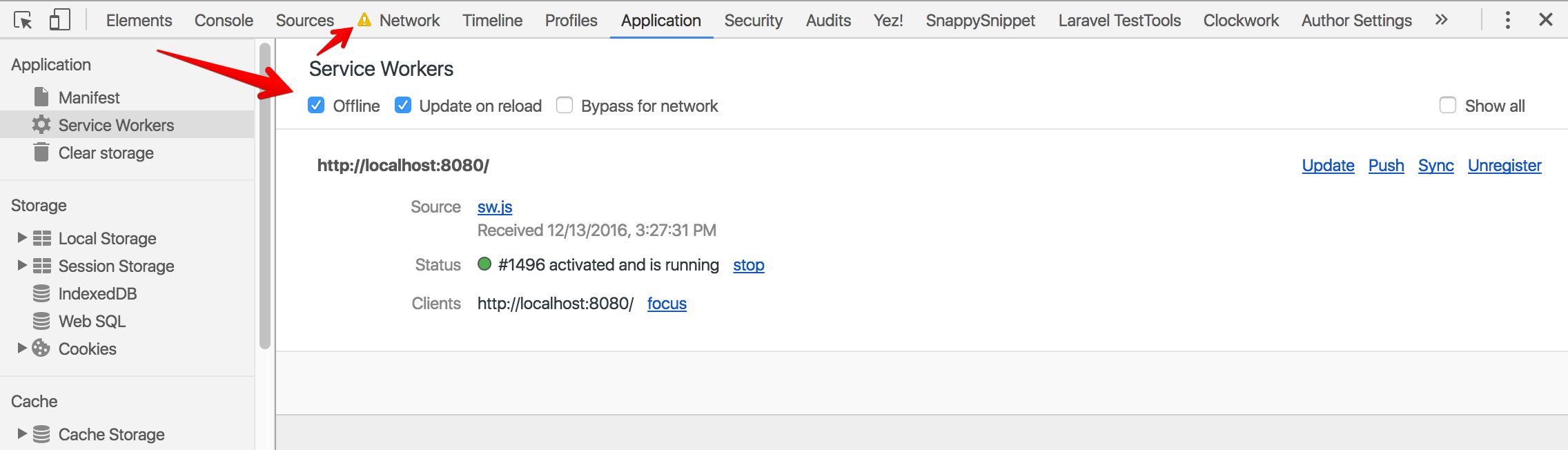
_Offline Network tab in Chrome Dev Tools_
Now, reload your web page and check it out. Does it work offline?

_Index Page Offline_
Yaaay!!! the index page is served offline. What about the `latest` page that shows the latest commits?
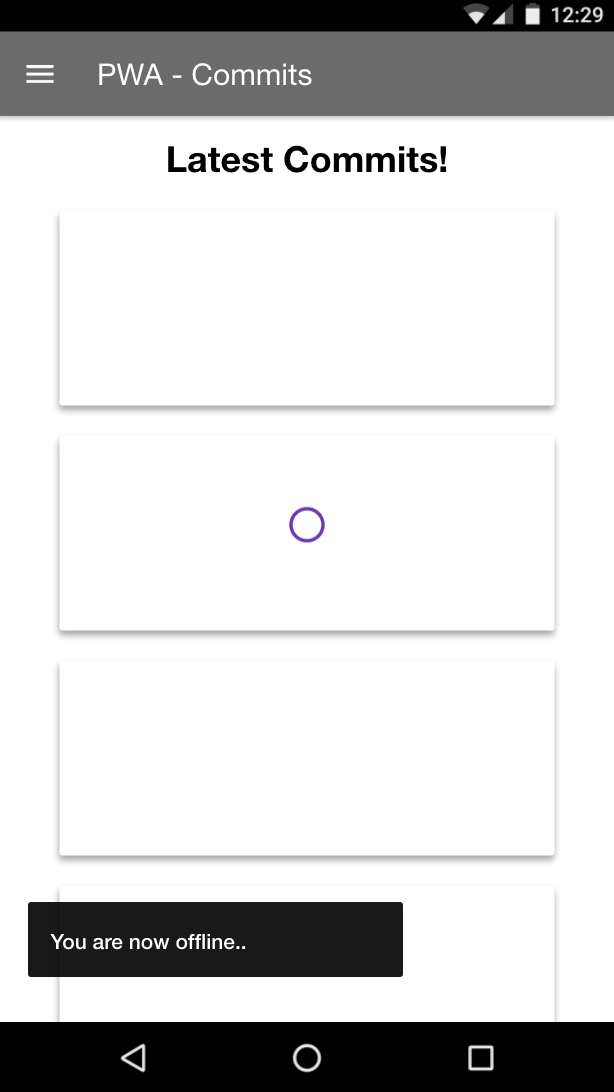
_Latest Page Offline_
Yaaay!!! the latest page is served offline. But wait a minute! Where is the data? Where are the commits? Oops! Our app still tries to query the Github API when the user is disconnected from the internet and it fails.
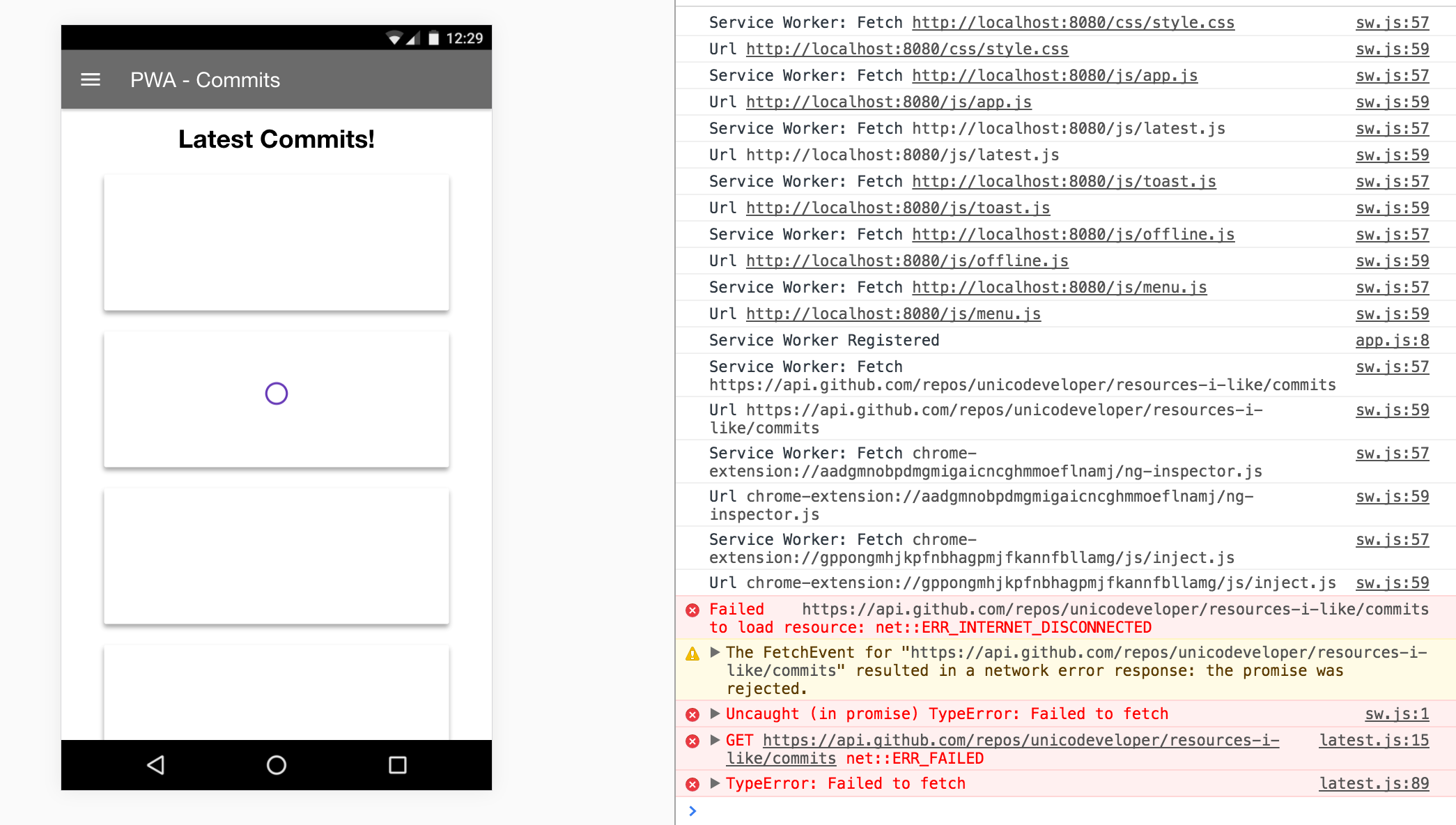
_Data Fetch Failure, Chrome DevTools_
What do we do? There are different ways to handle this scenario. One of the many options is telling the service worker to serve up an offline page. Another option is to cache the commit data on first load, load locally-saved data on subsequent requests, then fetch recent data later when the user is connected. The commit data can be stored in `IndexedDB` or `local Storage`.
Well, let's conclude here for now!
In the case of an offline-first app, authenticating the user against a remote database won't be possible when network connectivity is lost. However, with service workers, you have full control over which pages and scripts are loaded when the user is offline. This means you can configure your `offline.html` file to display a useful message stating the user needs to regain connectivity to login again instead of displaying the Lock login screen.
## Conclusion
In this article, we were able to cover the basics of how progressive web apps work in general. We were also able to make our app partially work offline.
In the next part of this tutorial, we will cover how to make our app fully work offline and load instantly by storing the dynamic commit data in the browser using one of its available form of storage.

