---
title: "Introducing FuseBox, an alternative to Webpack"
description: "A tutorial about using FuseBox to configure your JavaScript development environment on Node.js"
authors:
- name: "Andrea Chiarelli"
url: "https://auth0.com/blog/authors/andrea-chiarelli/"
date: "Nov 1, 2018"
category: "Developers,Tutorial,FuseBox"
tags: ["fusebox", "webpack", "module-bundler", "javascript", "web", "react", "bundling", "sass", "css", "typescript"]
url: "https://auth0.com/blog/introducing-fusebox-an-alternative-to-webpack/"
---
# Introducing FuseBox, an alternative to Webpack
**TL;DR:** In this article, you will get acquainted with [FuseBox](https://fuse-box.org/), a JavaScript and TypeScript _module bundler_ that is _simple to configure_ but _rich of powerful features_. In fact, FuseBox is so powerful and mature that it can be a _valid_ alternative to [WebPack](https://webpack.js.org/). Throughout the article, you will configure a simple [React](https://reactjs.org/) application, and so you can explore the main options of FuseBox. If needed, you can find the final project built on [this GitHub repository](https://github.com/andychiare/fusebox-react-tutorial).
## Why FuseBox?
If you have previous experience developing modern JavaScript applications (that is, applications using the latest ECMAScript features like classes and modules), you surely set up a development environment based on Node.js and a building system (most likely based on Webpack).
Actually, Webpack is a _de facto_ standard to configure the building system of modern JavaScript applications nowadays, but often newbies consider it hard to use, especially when they deal with complex applications. A [few](https://doug2k1.github.io/webpack-generator/) [tools](https://www.npmjs.com/package/create-webpack-config) may help developers to create a Webpack bundling configuration, but this is a clear symptom of its complexity.
If you are among those that consider Webpack too complex, well, you may take into account [FuseBox](https://fuse-box.org).
FuseBox is a young (but mature) project with a few clear principles:
- _Speed_: Building an application must be as quick as possible.
- _Simplicity_: Configuring a build system should not cause headaches.
- _Extensibility_: Anything that the FuseBox core doesn't take care of must be done through plugins.
FuseBox sticks to these principles by adopting a few approaches such as using TypeScript compiler by default, exploiting a powerful cache system, allowing zero-configuration code splitting, providing a simple-to-understand configuration syntax, supporting an integrated task runner, providing a rich set of plugins that are able to cover everything most applications need, and many other things.
## FuseBox in Action
Now that you know a little bit more about FuseBox and its principles, you are ready to start learning about it in practice. To do so, you will start by setting up a basic React project, then you will configure and build the app with FuseBox.
### Setting Up a Basic React Project
Consider a basic React-based project, like the one you can create with `create-react-app`, but without the Webpack stuff for building it. You can download this basic project from the `initial-react-project` branch of this [GitHub repository](https://github.com/andychiare/fusebox-react-tutorial.git):
```bash
# clone the repo
git clone https://github.com/andychiare/fusebox-react-tutorial.git
# move into the project directory
cd fusebox-react-tutorial
# checkout the desired branch
git checkout initial-react-project
```
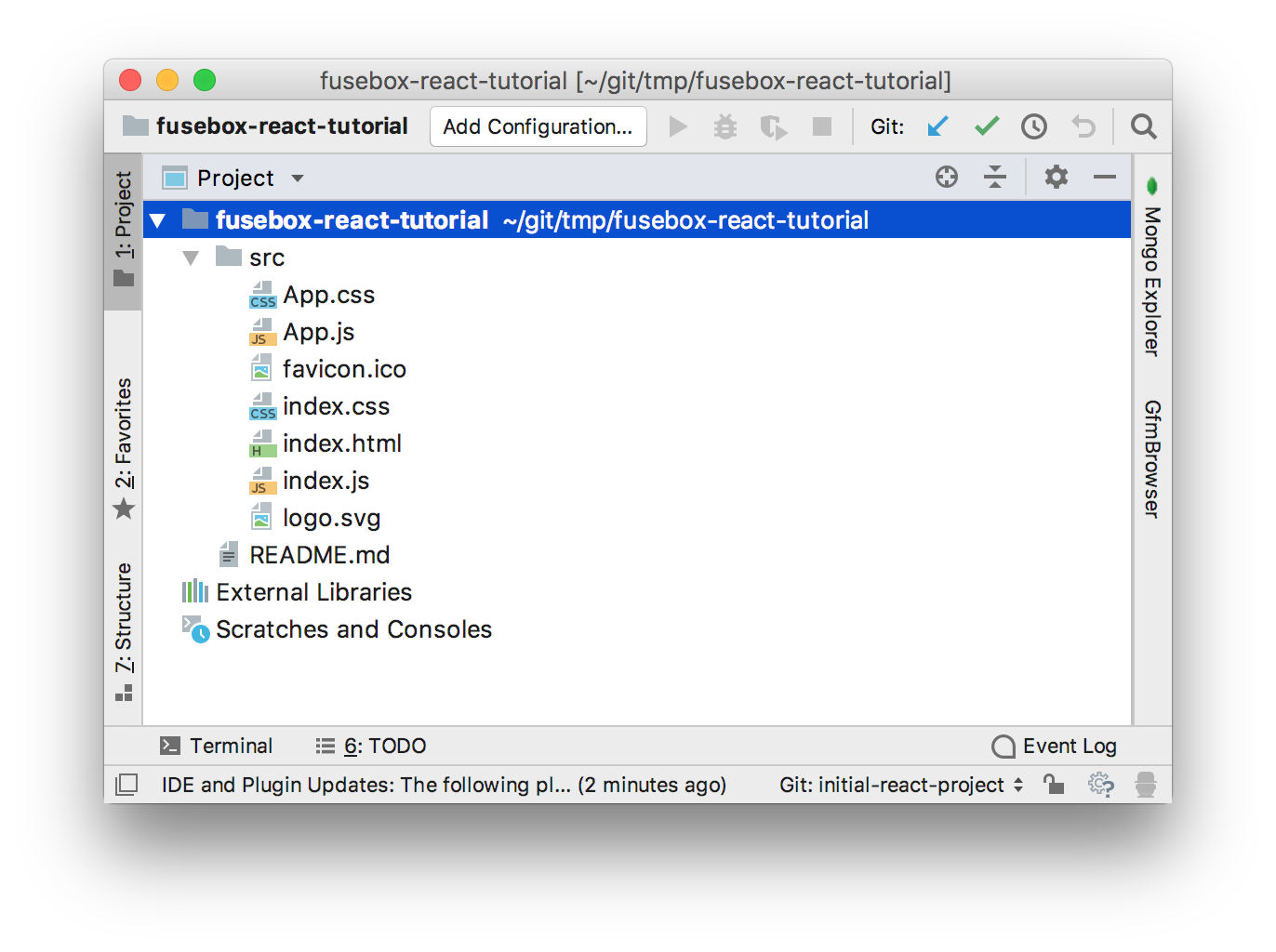
After cloning this repo and checking out the branch mentioned, you will get a project that contains the following structure:
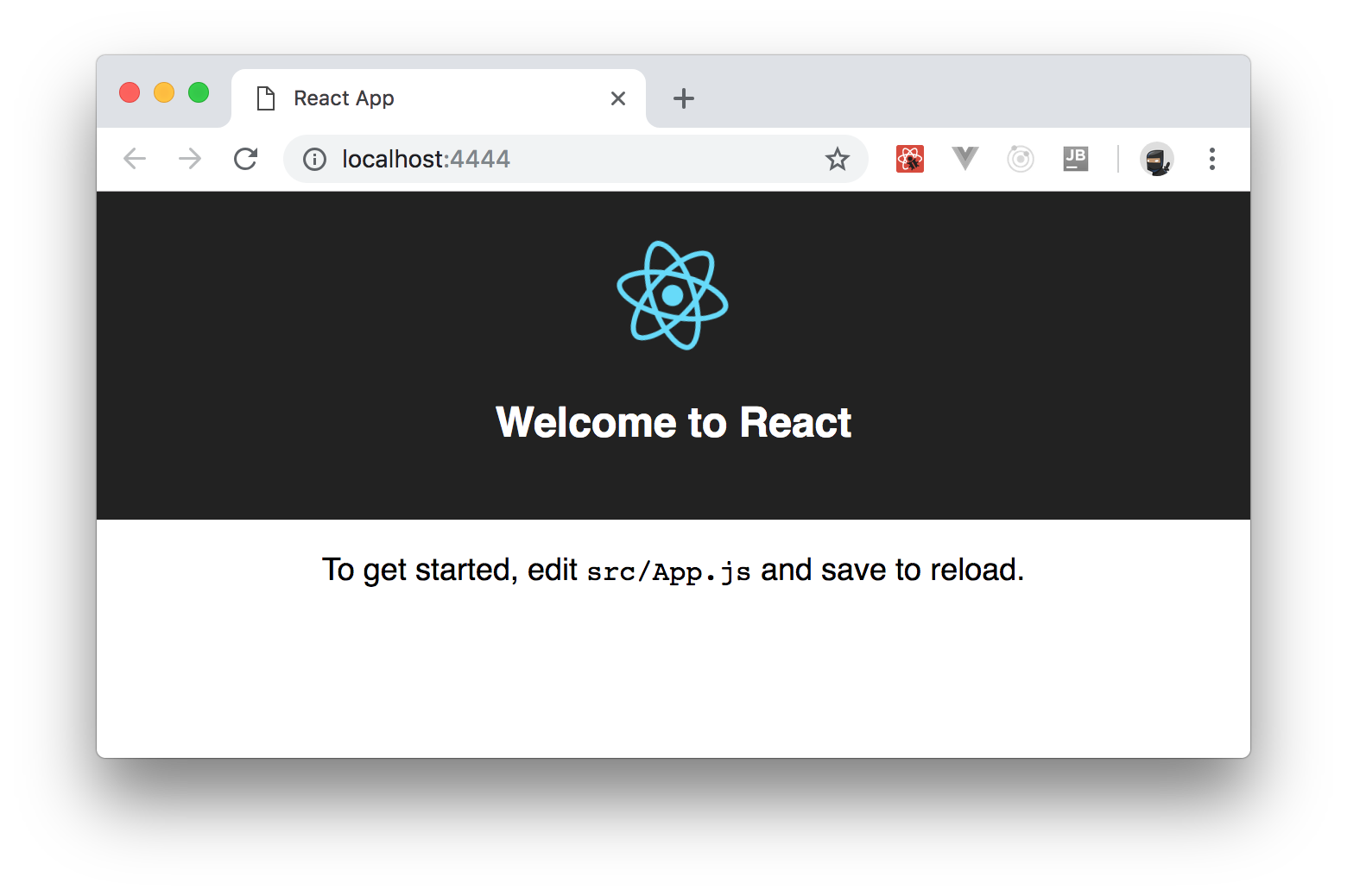
These files implement the classic React application shown in the following screenshot:
Of course, the project is not ready to run since a building system is missing. So, ensure you [have Node.js `v8.2+` installed](https://nodejs.org/en/download/) and create a `package.json` file (inside the project root directory) describing the project and its dependencies with this content:
```json
// ./package.json
{
"name": "fusebox-react-example",
"version": "1.0.0",
"description": "This is a simple project showing how to use FuseBox to setup a building system for React applications",
"main": "index.js",
"license": "ISC",
"dependencies": {
"react": "^16.5.2",
"react-dom": "^16.5.2"
},
"devDependencies": {
"fuse-box": "^3.5.0",
"typescript": "^3.0.3",
"uglify-es": "^3.3.9"
}
}
```
Beyond the `name`, the `description` and the other informative data, the `package.json` file declares `react` and `react-dom` as dependencies needed to use React in your project. The `devDependencies` section contains references to the packages you need in order to build the project. You will find references to FuseBox, to TypeScript, and to Uglify. Maybe you are wondering why you need TypeScript and Uglify. FuseBox considers TypeScript as its first class language. That is, you can write your application in TypeScript. Of course, since JavaScript is a subset of TypeScript, any JavaScript application may be compiled by the TypeScript transpiler (so no worries if you won't use any TypeScript features). Finally, Uglify is used to, well, uglify the resulting JavaScript code (i.e., make it harder to read).
Now, you can install the specified dependencies by typing the following command in the root directory of the project:
```bash
npm install
```
After a few moments, you will find the `node_modules` directory populated with the required packages.
### Configuring FuseBox
Now it's time to configure FuseBox in order to build your React project. To do so, start by creating a file named `fuse.js` in the project root with the following contents:
```javascript
// ./fuse.js
const { FuseBox, WebIndexPlugin, SVGPlugin, CSSPlugin } = require("fuse-box");
const fuse = FuseBox.init({
homeDir : "./src",
output : "./dist/$name.js",
useTypescriptCompiler : true,
plugins: [
CSSPlugin(),
SVGPlugin(),
WebIndexPlugin({
template : "src/index.html"
})
]
});
fuse
.bundle("app")
.instructions(" > index.js");
fuse.run();
```
As you can see, the contents of the `fuse.js` file are regular JavaScript code. The first line imports a few items from the `fuse-box` module. In particular, the `FuseBox` object is used to create an instance of the engine through the `init()` method. The object passed as an argument to `init()` defines the settings of the FuseBox engine. The `homeDir` property specifies the relative path of the folder containing your project. The `output` property defines the folder where will be created the result of the building process and the name of the generated bundle. You can notice the placeholder `$name` in the string defining the output bundle. This is a macro variable that refers to the bundle name specified later.
The `useTypescriptCompiler` property tells FuseBox to use the TypeScript transpiler to generate ECMAScript 5 code. Currently, this option is required in order to force using the TypeScript compiler (see [this discussion](https://github.com/fuse-box/fuse-box/issues/1026) for more information).
The `plugins` property contains a list of plugins adding functionalities to the FuseBox engine. In particular, it specifies the `CSSPlugin()` plugin, that processes and loads the CSS code, the `SVGPlugin()` plugin, that allows importing SVG files into JavaScript code, and the `WebIndexPlugin()` plugin, that configures the specified HTML file as a template. You will see how to define the HTML template in a few moments.
The `bundle()` method of the FuseBox instance `fuse` defines the name to assign to the resulting bundle, while the `instructions()` method defines the starting point of the building process, that is the JavaScript file the building process should start from. Later you will learn more about the string values you can pass to this method.
The last statement, `fuse.run()`, launches the actual build process.
### Defining an HTML File
Before launching the build process, you will need to bind the main HTML file (i.e., `index.html`) to the resulting bundle or bundles. You used `WebIndexPlugin()` to specify the path and the name of the main HTML file. Actually, if you don't specify any file, FuseBox will generate a new HTML for you. But if you want more control over the content of this file, it is convenient to define your own HTML file.
For example, in the case of the React application you are going to build, you want to define a root element to attach the application to. In fact, the `index.html` file contains the following markup:
``` html
React App
```
As you can see, it is a simple and almost-empty HTML page. However, you want FuseBox to insert the references to the bundles it will generate as the result of its building process. So, replace the contents of this file with this:
``` html
React App
$css
$bundles
```
Notice the two macro variables added to the markup: `$css` and `$bundles`. The first one will be replaced by the references to the bundles that will be generated from the CSS code, if any, while the second one will be replaced by the references to the bundles that will be generated from the JavaScript/TypeScript code.
In addition to `$css` and `$bundles`, FuseBox provides a set of macros to allow injecting data into the HTML template. For example, you can use `$author` to put the application's author name inside the markup, `$title` for the value to use as the HTML page title, or `$keywords` to provide a list of meta tags. Each of these macros corresponds to properties of the configuration object passed to the `WebIndexPlugin()` plugin, as shown below:
```javascript
WebIndexPlugin({
template : "src/index.html",
author : "Auth0 Inc.",
title : "A simple React application",
keywords : "react, fusebox, building system, bundle"
})
```
### Building the Project with FuseBox
Now you are ready to launch FuseBox in order to build your React application. So, type the following command in the project root directory:
```bash
node fuse
```
In a few seconds, the building process generates the following files in the `dist` folder, and you will get the `index.html` file and the `app.js` bundle resulting out of the compilation of the React application's files. Notice that the bundle resulting out of the current FuseBox configuration is a development bundle and it contains ES5 code that is not optimized. In addition, the building process in development mode always generates one bundle. Later you will learn how to produce multiple bundles and production-ready code.
As a side effect of the building process, you will notice a `tsconfig.json` file in the `src` folder and a `.fusebox` folder in the project's root folder. The `tsconfig.json` file contains configuration options for the TypeScript transpiler. Usually, you don't need to change it. The `.fusebox` folder contains the cache that allows to speed up the building process. In fact, the builds following the first one are executed much faster. You can manually remove the folder in some exceptional circumstances, for example when you update an NPM package and the new version isn't loaded.
### Setting Up a FuseBox Development Environment
Once you have configured your application, you'd like to run it. You could publish the content under the `dist` directory to a web server, but this could be a cumbersome task during the development process. Fortunately, FuseBox provides a development web server based on *Express.js* that helps you to run and test your app quickly. All you need to do is to call the `dev()` method of the FuseBox instance. To see this in action, replace the contents of the `fuse.js` file with this:
```javascript
// ./fuse.js
const { FuseBox, WebIndexPlugin, SVGPlugin, CSSPlugin } = require("fuse-box");
const fuse = FuseBox.init({
homeDir : "./src",
output : "./dist/$name.js",
useTypescriptCompiler : true,
plugins: [
CSSPlugin(),
SVGPlugin(),
WebIndexPlugin({
template : "src/index.html"
})
]
});
fuse.dev();
fuse
.bundle("app")
.instructions(" > index.js");
fuse.run();
```
> **Note:** The only difference here is the call to `fuse.dev();` on line 16.
Now, when you build your application by typing `node fuse`, you will find a message after the building process has finished, like the following:
```
-----------------------------------------------------------------
Development server running http://localhost:4444 @ 3.5.0
-----------------------------------------------------------------
```
So, you can open a browser and point to [`http://localhost:4444`](http://localhost:4444) and see your application in action. The port number `4444` is the default TCP port assigned by FuseBox to the development server. If you want to assign a different port, you can pass it to `dev()` as shown here:
```javascript
fuse.dev({port: 8080});
```
You can also configure FuseBox to rebuild your bundles and reload the application when a change to the source code is made. This behaviour, commonly referred to as _Hot Module Replacement_, can be accomplished by using the `watch()` and `hmr()` methods, as shown below:
```javascript
// ./fuse.js
// ... import statement ...
// ... FuseBox.init and fuse.dev ...
fuse
.bundle("app")
.instructions(" > index.js")
.watch()
.hmr();
fuse.run();
```
Now, if you make any changes to your code, FuseBox will automatically compile it, then bundle the result, and reload it in your browser.
### A Word About the Import Syntax
Running the app you built with FuseBox might end up resulting in the following problem:
```
Uncaught TypeError: Cannot read property 'createElement' of undefined
```
You could waste a lot of time trying to figure out what the problem is. Your code may seem correct, but most likely you used an incorrect syntax to load a JavaScript module, like in the following example:
```javascript
import React from 'react';
```
OK, this is a very common syntax. Even `create-react-app` generates this code to import React into your application's modules. However, this syntax is formally wrong since it doesn't follow the ECMAScript specifications. Unfortunately, [Babel facilitated this misunderstanding until version 5](https://blog.kentcdodds.com/misunderstanding-es6-modules-upgrading-babel-tears-and-a-solution-ad2d5ab93ce0). In fact, ECMAScript specifications allows you to import a default object only from a module exporting a default object. The `react` module doesn't export a default object, so that code doesn't import anything. This is the reason for the runtime error shown above.
The correct syntax should be as follows:
```javascript
import * as React from 'react';
```
In this way, you are importing all items exported by the `react` module under the `React` namespace.
In case you have an existing codebase using the wrong syntax and don't want to change it, or for some reason you want to continue using that syntax, you can configure FuseBox to accept the incorrect syntax by specifying the `allowSyntheticDefaultImports` option, as in the following example:
```javascript
const fuse = FuseBox.init({
// ... other properties
allowSyntheticDefaultImports : true,
});
```
### Using plugins in FuseBox
You've already seen how to use plugins in a FuseBox configuration. You can just add the `plugins` option and assign to it an array of imported plugins. The FuseBox community maintains [a lot of plugins](https://fuse-box.org/docs/plugins/babel-plugin) for most common tasks. The following is a short list of useful plugins:
- [*EnvPlugin*](https://fuse-box.org/docs/plugins/env-plugin) allows you to define environment variables that can be accessed at build time and at runtime.
- [*JSONPlugin*](https://fuse-box.org/docs/plugins/json-plugin) allows you to import JSON files as JavaScript objects.
- [*CSSModulesPlugin*](https://fuse-box.org/docs/plugins/css-modules-plugin) enables [CSS module](https://github.com/css-modules/css-modules) support in your application.
- [*CSSResourcePlugin*](https://fuse-box.org/docs/plugins/css-resource-plugin) allows you to copy CSS assets into a single folder when building.
- [*LESSPlugin*](https://fuse-box.org/docs/plugins/less-plugin) allows you to use the [Less](http://lesscss.org/) CSS pre-processor.
- [*PostCSSPlugin*](https://fuse-box.org/docs/plugins/postcss-plugin) enables [PostCSS](https://postcss.org/) in your application.
- [*SassPlugin*](https://fuse-box.org/docs/plugins/sass-plugin) allows you to use [Sass](http://sass-lang.com/) to process your `.scss` files.
- [*UglifyESPlugin*](https://fuse-box.org/docs/plugins/uglifyes-plugin) enables to minify your code by using [UglifyES](https://github.com/mishoo/UglifyJS2/tree/harmony), a version of `uglify.js` supporting ES6+.
- [*UglifyJSPlugin*](https://fuse-box.org/docs/plugins/uglifyjs-plugin) allows you to compress your code using [UglifyJS2](https://github.com/mishoo/UglifyJS2).
In most cases, you simply import them from the `fuse-box` module, as you have seen before:
```javascript
const { WebIndexPlugin, SVGPlugin, CSSPlugin } = require("fuse-box");
```
However, some plugins require you to install some external package. See their [documentation](https://fuse-box.org/docs/plugins/babel-plugin) for more information.
If the default behaviour is satisfactory, you can use a plugin without any parameter. Otherwise, you can pass an object with specific options, as you did with `WebIndexPlugin()`.
### Using Sass with FuseBox
In some cases, you want to chain multiple plugins so that the output of one plugin is passed as the input of the other one. This could be the case when you are using Sass, for example. You want to write your `.scss` files and get the resulting `.css` files as the output of the build process. Then you want FuseBox processes these resulting `.css` files to produce the appropriate bundles.
To do this, you will need to install the `node-sass` package by typing the following command in the project root directory:
```bash
npm install node-sass --save-dev
```
After `node-sass` is installed, change the file extension of the `App.css` file into `App.scss`. Now, open the `App.scss` file and replace its content with this:
```scss
/* ./src/App.scss */
$bg-color: #222;
.App {
text-align: center;
}
.App-logo {
animation: App-logo-spin infinite 20s linear;
height: 80px;
}
.App-header {
background-color: $bg-color;
height: 150px;
padding: 20px;
color: white;
}
.App-title {
font-size: 1.5em;
}
.App-intro {
font-size: large;
}
@keyframes App-logo-spin {
from { transform: rotate(0deg); }
to { transform: rotate(360deg); }
}
```
In this example, you are defining the Sass variable `$bg-color` and using it as the background colour of the `App-header` class. Of course, this is just a simple example to test Sass support in the FuseBox's building process.
Now, open the `fuse.js` file and change its content with this:
```javascript
// ./fuse.js
const { FuseBox, WebIndexPlugin, SVGPlugin, CSSPlugin, SassPlugin } = require("fuse-box");
const fuse = FuseBox.init({
homeDir : "./src",
output : "./dist/$name.js",
useTypescriptCompiler : true,
plugins: [
[ SassPlugin({outputStyle: "compressed"}),
CSSPlugin()
],
CSSPlugin(),
SVGPlugin(),
WebIndexPlugin({
template : "src/index.html"
})
]
});
fuse.dev();
fuse
.bundle("app")
.instructions(" > index.js")
.watch()
.hmr();
fuse.run();
```
As you can see, the `SassPlugin` plugin is imported in the first line of the file. This plugin is chained with `CSSPlugin` in the `plugins` array. You can notice that the first item in the `plugins` array is an array itself. This array is telling FuseBox that you want to chain the included plugins. Of course, the chained plugins must support chaining. In addition, keep in mind that the order of the plugins in the chaining array is very important.
In this case, the `SassPlugin()` will process any `.scss` file, then the `CSSPlugin()` will take the output of `SassPlugin()` and will bundle the resulting CSS files. Notice that the `SassPlugin()` plugin has the option object `{outputStyle: "compressed"}` as an argument. In fact, you can specify any possible Sass option through a key/value pair. Also, notice that the `CSSPlugin()` is repeated just after the array of the chained plugins. This is needed in order to process all the remaining CSS files in the project.
The last thing you need to change is the `import` statement of the `App.css` stylesheet. So, open the `App.js` file and change it as follows:
```javascript
// src/App.js
// ... other import statements ...
import './App.scss';
// ... App definition and export ...
```
Now, by running the application via the `node fuse` command, you should continue to get the same application, even if part of its CSS has been generated from Sass code.
### Code Splitting with FuseBox
So far, the React project you've built generates a single bundle. In a small project, like the one you are building while reading this article, this may be acceptable. However, in large projects you may want to split your code base in multiple bundles for organization and performance reasons. For example, a common practice while creating JavaScript bundles is to separate the bundle originated by the current project from the bundle generated by third-party libraries, usually called _vendors_.
You can split the resulting bundle of the building process by working with the `instructions()` method. In the current FuseBox configuration, the string `> index.js` is passed to this method. You used it without knowing its meaning. Now it's time to explain.
The `instruction()` method tells FuseBox how to manage your code in order to create a bundle. In particular, it tells where to start, what to include or to exclude and so on. You provide this information by passing an appropriately formatted string. This string is composed by file names and a few arithmetic symbols. For example, the string you used (`> index.js`) tells FuseBox to create a bundle by starting from the `index.js` file and following the flow of the `import` statements it will find. The resulting bundle will be executed as soon as it is loaded into the Web page (this is the meaning of the `>` symbol).
You can create a bundle considering just the code of your project by providing the `> [index.js]` string to the `instructions()` method. The `[]` symbols tells FuseBox not to include external dependencies.
The `~ index.js` string tells to take into account only the external code, that is only the dependencies.
By using these expressions, you can create one bundle containing only the project code and one bundle containing only the dependencies code. So, open the `fuse.js` file and change its content as follows:
```javascript
// ./fuse.js
const { FuseBox, WebIndexPlugin, SVGPlugin, CSSPlugin, SassPlugin } = require("fuse-box");
const fuse = FuseBox.init({
homeDir : "./src",
output : "./dist/$name.js",
useTypescriptCompiler : true,
plugins: [
[ SassPlugin({outputStyle: "compressed"}),
CSSPlugin()
],
CSSPlugin(),
SVGPlugin(),
WebIndexPlugin({
template : "src/index.html"
})
]
});
fuse.dev();
fuse
.bundle("vendor")
.instructions("~ index.js");
fuse
.bundle("app")
.instructions("> [index.js]")
.watch()
.hmr();
fuse.run();
```
The only part that has been changed is the definition of the resulting bundle. In this case, you have two bundle definitions. The first definition addresses a bundle named `vendor` that takes into account only the code outside the current React application, as highlighted by the following snippet of code:
```javascript
fuse
.bundle("vendor")
.instructions("~ index.js");
```
The second one defines a bundle named `app` containing just the code of the React application:
```javascript
fuse
.bundle("app")
.instructions("> [index.js]")
.watch()
.hmr();
fuse.run();
```
Now, the building process will generate three separate files: `app.js`, `index.html`, and `vendor.js`.
### Code Splitting for Dynamic Loading
In addition to organizational purposes, you might want to split the code of your project for performance reasons. A common approach in this direction is to split the application bundle in multiple bundles so that each one is loaded on demand at runtime, only if needed. This is a common approach to save network bandwidth and to speed up the application's initial loading.
FuseBox allows you to split the code of your application in multiple bundles without any specific configuration. FuseBox will create new bundles simply by analyzing your code. In fact, you tell FuseBox to split your code by using the [dynamic `import` statement](https://developer.mozilla.org/en-US/docs/Web/JavaScript/Reference/Statements/import#Dynamic_Imports). For example, add a new React component to your project by creating the file `MainContent.js` in the `src` folder with the following content:
```javascript
// ./src/MainContent.js
import * as React from 'react';
export class MainContent extends React.Component {
render() {
return
This is the main content!
;
}
}
```
This is just a simple component showing a text inside a `div` element. The goal is to change the current application in order to load this component on demand when the user clicks a button. So, replace the content of `App.js` file with the following:
```javascript
// src/App.js
import * as React from 'react';
import { Component } from 'react';
import * as logo from './logo.svg';
import './App.scss';
class App extends Component {
constructor() {
super();
this.state = {mainContent: null};
}
render() {
return (
Welcome to React
To get started, edit src/App.js and save to reload.
{this.state.mainContent? : }
);
}
async loadMainContent() {
const module = await import("./MainContent");
this.setState({mainContent: module.MainContent});
}
}
export default App;
```
The differences with respect with to the previous version concern the addition of the `constructor()` method to the class. In the constructor, you can find the definition of the component's state with a `mainContent` property.
Inside the JSX markup returned by the `render()` method, you find this new block:
```js
{this.state.mainContent? : }
```
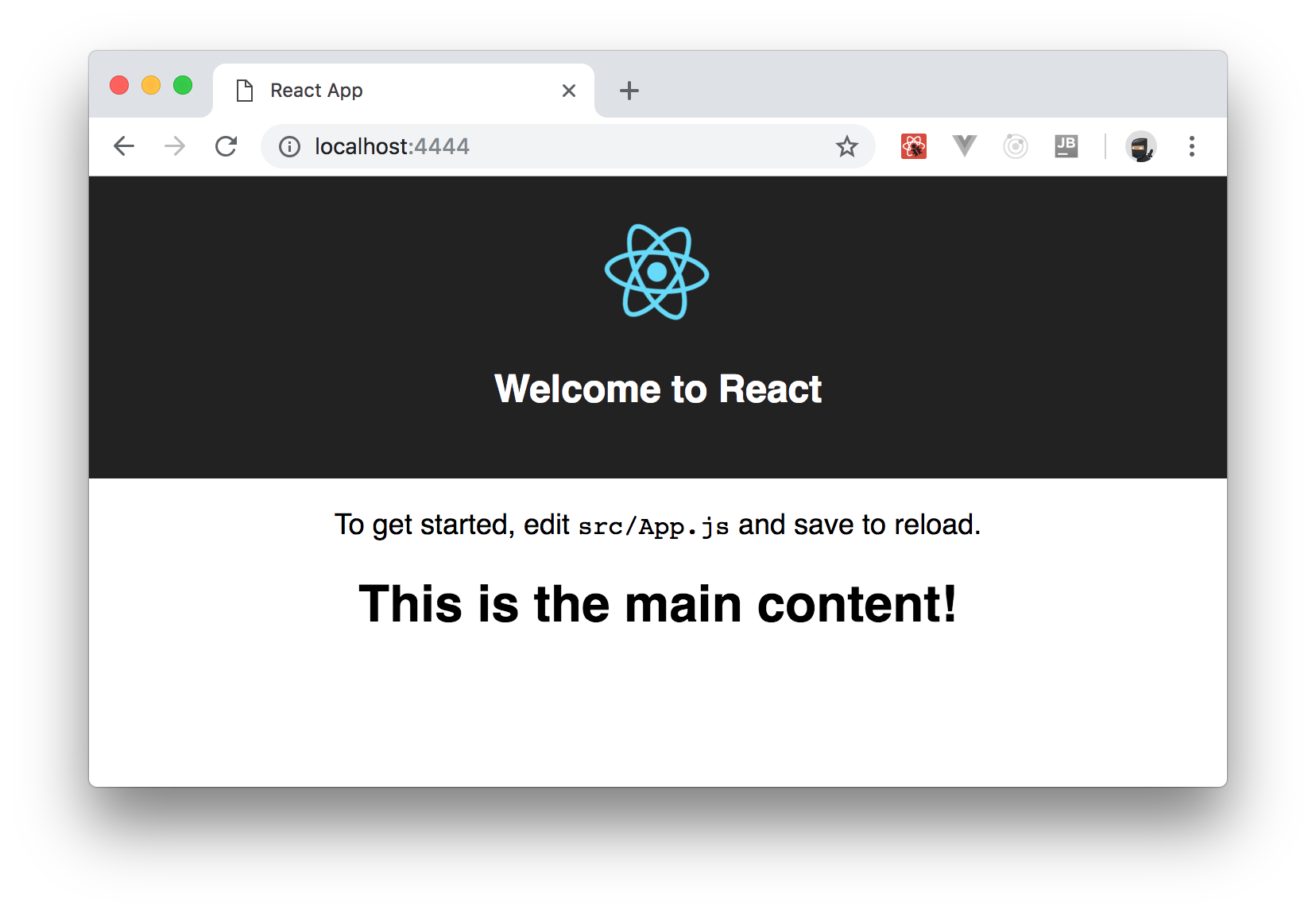
This code shows the `mainContent` property of the component's state if it is not null or a button that loads the component when the user clicks it. The actual dynamic loading happens into the `loadMainContent()` method. There, the `MainConten.js` module is imported with the dynamic import statement `import()`. Since the dynamic import is asynchronous, you find the `await` statement and the `loadMainContent()` method marked as `async`. After loading the module, you assign the `module.MainContent` component to the `mainContent` property of the component's state. This will cause the rendering of the component on the page as in the following picture:
The simple use of the dynamic import will make FuseBox create a second bundle containing the `MainContent.js` module.
One thing to notice is that, if you look at the result of the building process in the `dist` folder, you will find just the usual two bundles `app` and `vendor`. What happens? Where is the third bundle for the `MainContent.js` module? Actually, FuseBox performs physical code splitting only when it generates production code, as we will see later. During the development phase, as in the current one, it generates one bundle by design.
### Building Production Code with FuseBox and the Quantum Plugin
The code generated by the current FuseBox building process is working just fine. However, you want to have an optimized and high-performant code in your production environment. FuseBox assigns this task to a specialized plugin called _Quantum_. _Quantum_ creates highly-optimized and compressed bundles by applying a few configurable actions, such as redundant and unused code removal (*tree shaking*), physical code splitting, and minification. In order to enable Quantum, you just need to import it from the `fuse-box` package and put it in the `plugins` list in the `fuse.js` file, as shown by the following example:
```javascript
// fuse.js
const { FuseBox, WebIndexPlugin, SVGPlugin, CSSPlugin, SassPlugin, QuantumPlugin } = require("fuse-box");
const fuse = FuseBox.init({
// ... other options ...
plugins: [
// ... other plugins ...
QuantumPlugin()
]
})
// ... dev, bundle, and run ...
```
Now, if you clean the `dist` folder and run `npm fuse` again, FuseBox will populate the `dist` folder with the following files:
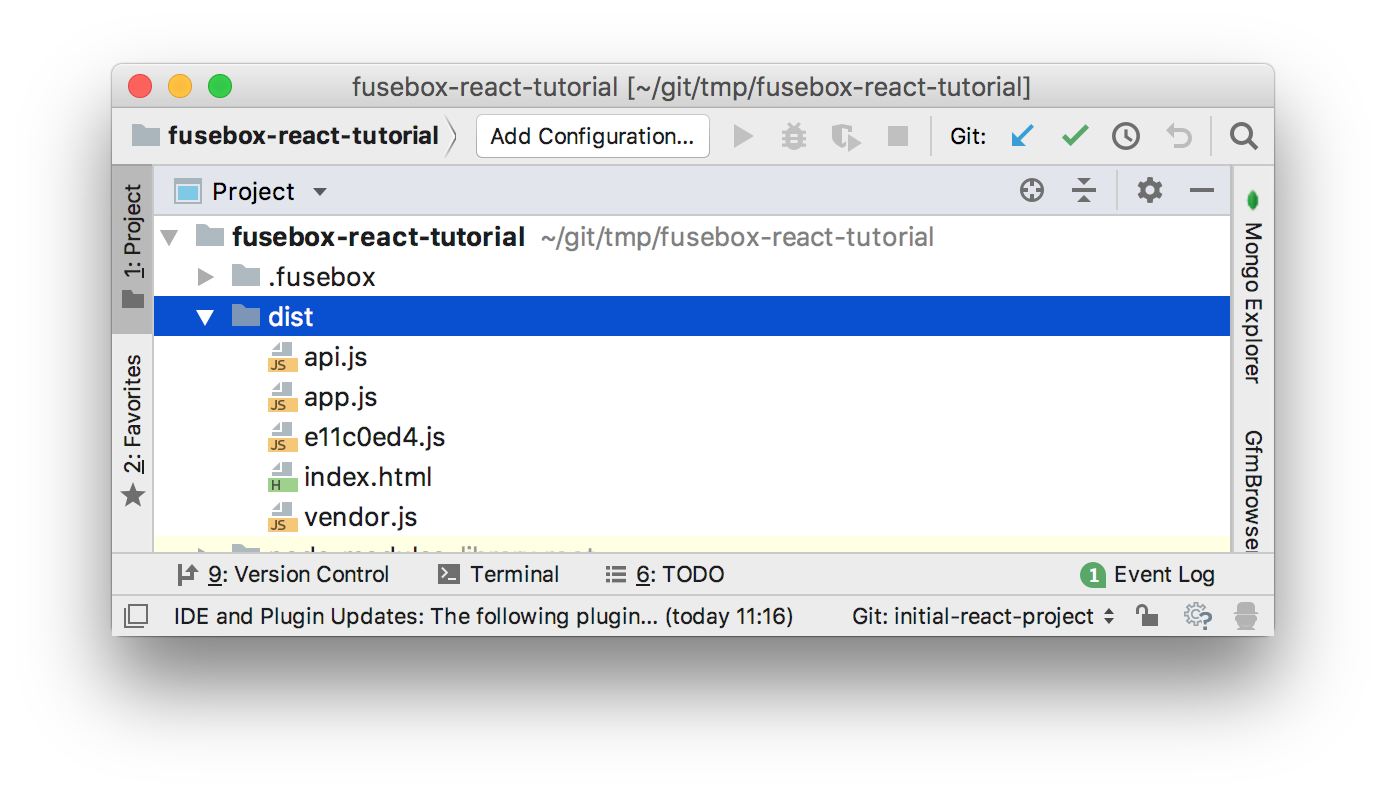
In addition to the `index.html` file, you can see:
- the `api.js` file, which contains the FuseBox API code;
- the main `app.js` file, which contains the application's code;
- the `vendor.js` file, which contains third-parties code;
- and the `e11c0ed4.js` file, which contains the code of the `MainContent` module.
As you can see, Quantum generated the bundle from the dynamic import seen in the previous section.
If needed, you can ask Quantum to merge the FuseBox API bundle into another bundle, such as the `vendor.js` bundle. To do so, you pass an options object with the `bakeApiIntoBundle` property, as shown by the following example:
```javascript
QuantumPlugin({bakeApiIntoBundle: "vendor"})
```
The value assigned to the `bakeApiIntoBundle` property is the name of the bundle where to merge the FuseBox API. In this case, you will not find the `api.js` file as the result of the building process, since its code will be inside the `vendor.js` file.
> **Note**: You need to merge the FuseBox API bundle into the first bundle created by your FuseBox configuration so that it will correctly load all modules of the project. In the current project, `vendor` is the first bundle defined in `fuse.js`.
By default, the CSS code of your application is bundled inside the application's code. If you want to get the CSS code in a separate file, you should specify the `css` property among the Quantum's options properties, like in the following example:
```javascript
QuantumPlugin({
bakeApiIntoBundle: "app",
css : true
})
```
This will put your CSS code inside the `style.css` file. Now, clean the `dist` folder, and launch the building process (`node fuse`). The output of the building process will look like the following:
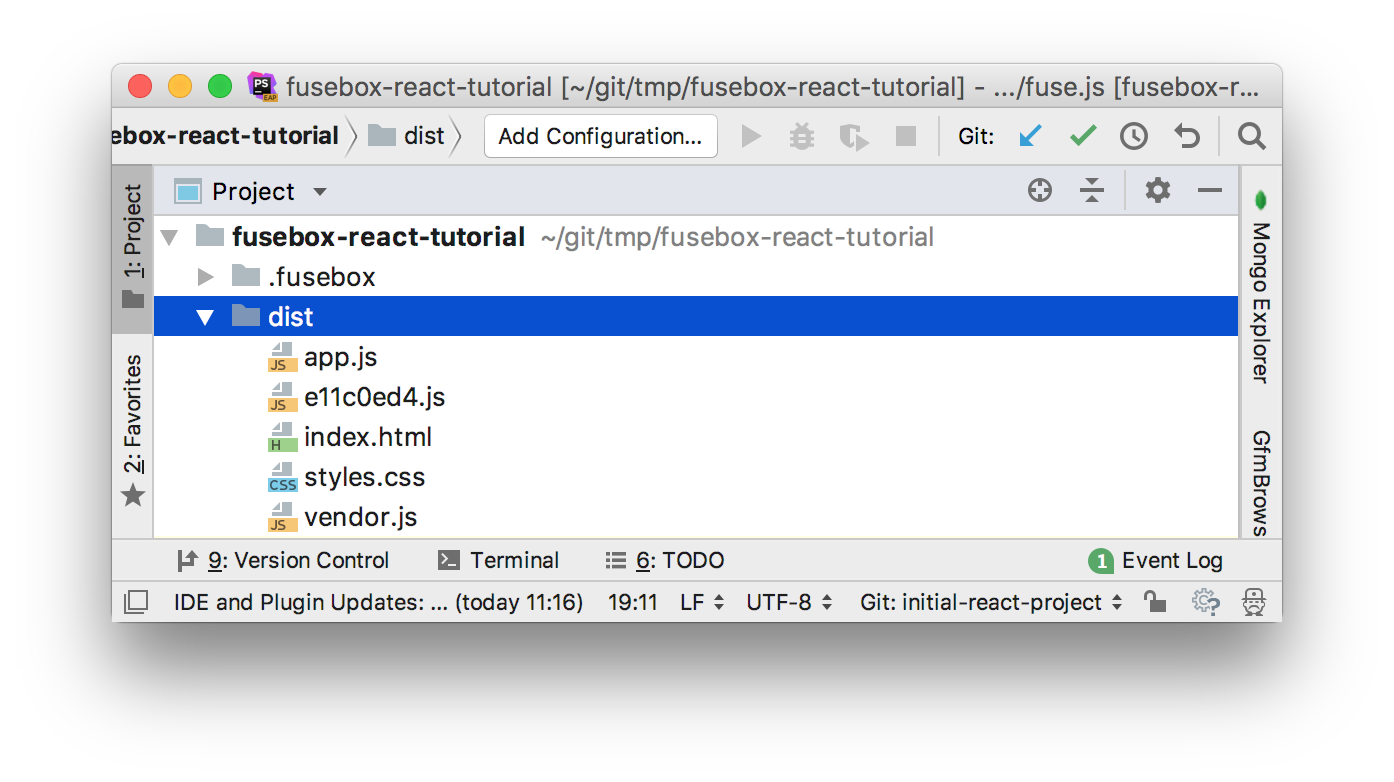
In order to enable the optimizations techniques (like *tree shaking* and *uglifying*), you can specify corresponding parameters to Quantum, as the following example shows:
```javascript
QuantumPlugin({
bakeApiIntoBundle: "app",
css : true,
treeshake: true,
uglify: true
})
```
I leave it to you the task to compare the difference in size between the non-optimized bundles and the optimized ones using Quantum.
Of course, Quantum has many other options. Please refer the [official documentation](https://fuse-box.org/docs/production-builds/quantum-configuration) for more information.
### Introducing Sparky, the FuseBox Integrated Task Runner
Managing the development of an application usually requires you to execute a few repetitive tasks. Even in this simple project, you need at least to manually clear the content of the `dist` folder before launching a new building process. These kinds of tasks are boring and time-consuming. You should automate them.
Most bundling tools leave this job to external task runners, like [Gulp](https://gulpjs.com/) or [Grunt](https://gruntjs.com/). However, FuseBox has an integrated task runner covering most common operations: *Sparky*. By using Sparky, you don't need to install yet another tool since it comes with FuseBox. In addition, you have the ability to access the FuseBox API and its plugins, so you can customize your building process as you want.
Start getting familiar with Sparky by automating a very basic task: cleaning the `dist` folder. So, open the `fuse.js` file and import the `src()` function from the `fuse-box/sparky` module, as shown in the following snippet of code:
```javascript
// ./fuse.js
// ... other import statements ...
const { src } = require("fuse-box/sparky");
```
The `src()` function allows Sparky to access a folder or the files contained in a folder. For example, `src("./dist")` selects the folder `dist` in the current folder, while `src("./src/assets/*.png")` captures all the `png` files in the `src/assets` folder.
In order to clean the `dist` folder, you will use the `clean()` method before running the building process. The new content of `fuse.js` file will look like the following:
```javascript
// fuse.js
const { FuseBox, WebIndexPlugin, SVGPlugin, CSSPlugin, SassPlugin, QuantumPlugin } = require("fuse-box");
const { src } = require("fuse-box/sparky");
const fuse = FuseBox.init({
homeDir : "./src",
output : "./dist/$name.js",
useTypescriptCompiler : true,
plugins: [
[ SassPlugin({outputStyle: "compressed"}),
CSSPlugin()
],
CSSPlugin(),
SVGPlugin(),
WebIndexPlugin({
template : "src/index.html"
}),
QuantumPlugin({
bakeApiIntoBundle: "app",
css : true,
treeshake: true,
uglify: true
})
]
});
src("dist").clean("dist").exec();
fuse.dev();
fuse
.bundle("vendor")
.instructions("~ index.js");
fuse
.bundle("app")
.instructions("> [index.js]")
.watch()
.hmr();
fuse.run();
```
Notice how the commands are used: you define the folder you want to capture via `src("dist")`, then you declare that you want to clean the `dist` folder, and finally execute the commands with `exec()`. Now, by typing `node fuse` in the console, you will start the building process in a clean `dist` folder.
### Creating Tasks with Sparky
Of course, the last section introduced just a very simple example. You can take a step forward by getting acquainted with task and context definitions. In its basic form, a task is a function taking two parameters: a string defining the task name and a function that is executed when the task runs. The following is the definition of a task cleaning the `dist` folder:
```javascript
task("clean", () => src("dist").clean("dist").exec() );
```
You see that the name of the task is `"clean"`, so you can run this task from the console by typing:
```bash
node fuse clean
```
You passed the task name to the `fuse.js` script to tell FuseBox to run that specific task. If you define a task with `"default"` as its name, it will be executed when no task name is provided to `node fuse`.
Another useful concept in Sparky is the context. Context is an object instantiated when `fuse.js` is executed, and it is shared between tasks. It can be defined by passing an object or a class or a function to the `context()` function, as in the following example:
```javascript
context({
value: 0,
addValue(n) {this.value++;}
});
```
The context defined above can be accessed by any task via parameters, as shown below:
```javascript
task("myTask", (context) => context.addValue(3));
```
By combining tasks and context, you can automate the building process in an effective way. For example, the current `fuse.js` script generates the production code of your React application. You might want to generate the development code and running the web server or just the production code without running the web server. You can accomplish this by defining a context with the FuseBox configuration and a few tasks.
In order to get this result you need to rewrite the content of the `fuse.js` file. The new content will have the definition of the context, as shown by the following code:
```javascript
// fuse.js
const { FuseBox, WebIndexPlugin, SVGPlugin, CSSPlugin, SassPlugin, QuantumPlugin } = require("fuse-box");
const { src, task, context } = require("fuse-box/sparky");
context({
isProduction: false,
getConfig() {
return FuseBox.init({
homeDir : "./src",
output : "./dist/$name.js",
useTypescriptCompiler : true,
plugins: [
[ SassPlugin({outputStyle: "compressed"}),
CSSPlugin()
],
CSSPlugin(),
SVGPlugin(),
WebIndexPlugin({
template : "src/index.html"
}),
this.isProduction && QuantumPlugin({
bakeApiIntoBundle: "app",
css : true,
treeshake: true,
uglify: true
})
]
});
},
createAppBundle(fuse) {
const app = fuse
.bundle("app")
.instructions(">[index.js]");
if (!this.isProduction) {
app.watch()
.hmr();
}
return app;
},
createVendorBundle(fuse) {
const app = fuse
.bundle("vendor")
.instructions("~index.js");
return app;
}
});
```
The object passed to the `context()` function has four members:
- `isProduction`: This property states if the development or production code needs to be generated.
- `getConfig()`: This method returns the instance of the FuseBox engine. As you can see, the Quantum plugin is enabled only if the value of `isProduction` property is `true`.
- `createAppBundle()`: This method takes the instance of the FuseBox engine as an argument and defines how the `app` bundle will be built. The *Hot Module Replacement* is enabled only when you are not generating the production code.
- `createVendorBundle()`: This method takes the instance of the FuseBox engine as an argument and defines how the `vendor` bundle will be built.
This context will be used by the tasks defined as follows:
```javascript
task("clean", () => src("dist").clean("dist").exec() );
task("default", ["clean"], async (context) => {
const fuse = context.getConfig();
fuse.dev();
context.createBundle(fuse);
await fuse.run();
});
task("dist", ["clean"], async (context) => {
context.isProduction = true;
const fuse = context.getConfig();
context.createBundle(fuse);
await fuse.run();
});
```
You have three tasks. You already know the first task: it is the task that cleans the `dist` folder.
The second one is the default task, so it will be executed when no task name is provided to the `fuse.js` script. Notice that, in this case, the `task()` function has three arguments. The second argument is an array containing the string `"clean"`. This array defines a list of dependencies, that is a list of other tasks that will be executed before the current task. This means that the `"clean"` task will be executed before running the default task. The function associated with the default task takes the FuseBox instance from the context, enables the web server, defines the `app` and `vendor` bundles and runs the building process. Since the value of `isProduction` is not changed, the default task will generate the development code.
The third task is named `"dist"` and will produce the production-ready code. In fact, it assigns `true` to the `isProduction` property before getting the FuseBox instance. Then it defines the bundles and runs the building process. No web server is launched in this case.
The following is the complete code for the `fuse.js` file:
```javascript
// fuse.js
const { FuseBox, WebIndexPlugin, SVGPlugin, CSSPlugin, SassPlugin, QuantumPlugin } = require("fuse-box");
const { src, task, context } = require("fuse-box/sparky");
context({
isProduction: false,
getConfig() {
return FuseBox.init({
homeDir : "./src",
output : "./dist/$name.js",
useTypescriptCompiler : true,
plugins: [
[ SassPlugin({outputStyle: "compressed"}),
CSSPlugin()
],
CSSPlugin(),
SVGPlugin(),
WebIndexPlugin({
template : "src/index.html"
}),
this.isProduction && QuantumPlugin({
bakeApiIntoBundle: "app",
css : true,
treeshake: true,
uglify: true
})
]
});
},
createAppBundle(fuse) {
const app = fuse
.bundle("app")
.instructions(">[index.js]");
if (!this.isProduction) {
app.watch()
.hmr();
}
return app;
},
createVendorBundle(fuse) {
const app = fuse
.bundle("vendor")
.instructions("~index.js");
return app;
}
});
task("clean", () => src("dist").clean("dist").exec() );
task("default", ["clean"], async (context) => {
const fuse = context.getConfig();
fuse.dev();
context.createVendorBundle(fuse);
context.createAppBundle(fuse);
await fuse.run();
});
task("dist", ["clean"], async (context) => {
context.isProduction = true;
const fuse = context.getConfig();
context.createVendorBundle(fuse);
context.createAppBundle(fuse);
await fuse.run();
});
```
Now you can launch your project in the development environment with the internal web server by simply typing `node fuse` in the console. Also, you can generate the production code by typing `node fuse.js dist`:
For your convenience, you can define your `npm` commands by adding the following `scripts` property in the `package.json` file:
```json
"scripts": {
"start": "node fuse",
"dist": "node fuse dist"
}
```
With these changes, you can use `npm start` to launch the development environment with its web server and `npm run dist` to generate the production code.
## Summary
This article introduced the main features of FuseBox while guiding you in the configuration of a simple React application. As you've seen, FuseBox supports the most common features that a bundler must have: it allows you to define how to generate your bundles for development and production environments, it provides an integrated development web server with *Hot Module Replacement* support, and it allows you to configure it. Using these features, you have defined the basic configuration of a React application and built your first bundle.
Despite being relatively young, FuseBox has a wide range of options and plugins that provide you with great flexibility and allows you to easily deal with non-JavaScript files like CSS, SCSS, PNG, and so on. You used these feature by configuring your React project to compile your Sass code into standard CSS.
You've seen how FuseBox provides out-of-the-box support for code splitting and dynamic loading by defining a new component loaded on demand after the user's interaction. In addition, you used its integrated task runner, Sparky, in order to automate repetitive activities like cleaning the output folder and switching from development and production building configurations.
Of course, FuseBox has many other interesting features. To learn about them, check out the [official FuseBox website](https://fuse-box.org/).